
Encrypt Your Cloud Files With Cryptomator (Free)
Cryptomator adds free, open-source zero-knowledge encryption on top of Google Drive, Dropbox or iCloud—so your provider stores your files but literally cannot read them. Here's how.
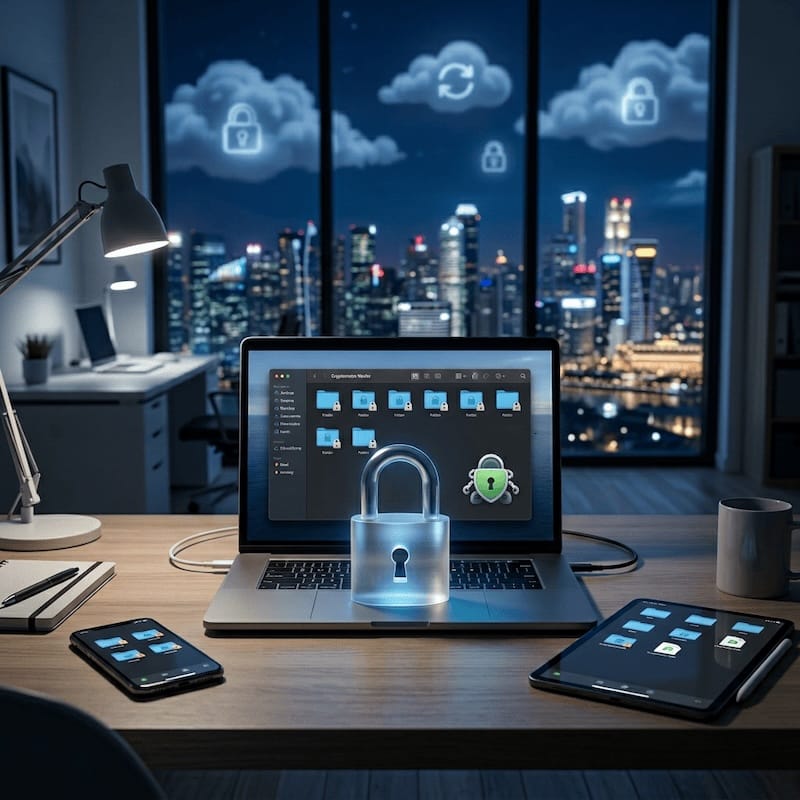
Storing sensitive files in plain text on a cloud drive is the digital equivalent of leaving your front door wide open. Ransomware, breaches and account takeovers have stopped being rare headlines and become routine—and the moment someone gets into your cloud account, every unencrypted file is theirs: ID documents, tax returns, contracts, medical records, private photos. The fix isn’t leaving your cloud provider. It’s making sure they can’t read what you store. That’s exactly what Cryptomator does, and it’s free.
The essentials
- Zero-knowledge, client-side encryption: only you hold the key; your cloud provider cannot read your files, even if breached or subpoenaed.
- Free and open-source on desktop (Windows/macOS/Linux); freemium on mobile—free read-only, a one-time purchase (€29.99, per platform) for write access.
- Works on top of your existing cloud—Google Drive, Dropbox, OneDrive, iCloud, Nextcloud, pCloud and any WebDAV/S3 storage.
- No extra storage used: encrypted files replace the plaintext ones (under ~1% overhead), and per-file chunking means sync only re-uploads what changed.
- Files are encrypted with AES-256 (SIV-GCM / SIV-CTRMAC), keys derived with scrypt; the codebase has been independently audited.
Why has encrypting your files stopped being optional?
Because the threat model changed. Cyberattacks aren’t a niche corporate problem anymore—they’re ambient. Ransomware is a multi-billion-dollar industry running double-extortion (encrypt your data and threaten to leak it). AI has made phishing frighteningly convincing. Credential stuffing means one leaked password gets tried against every service you own. And cloud breaches happen more often than providers like to admit.
The common thread: if someone reaches your cloud account—through a leaked password, a phishing page, or a breach of the provider itself—every file you stored in plain text is instantly readable. Encryption is the one layer that stays standing when the others fail.
Doesn’t my cloud already encrypt my files?
Partly—and not in the way that protects you. Google Drive, Dropbox, OneDrive and iCloud encrypt your data in transit (TLS) and at rest (on their servers). But they hold the keys. That means the provider can read your files, scans them at least for illegal content, must hand them over in readable form under a valid legal order, and exposes them the moment their infrastructure—or your account—is compromised.
Client-side encryption flips that. You encrypt on your own device before anything uploads, and you hold the only key. The provider keeps storing and syncing your data but cannot read it. That’s the “zero-knowledge” difference, and it’s the whole game.
What is Cryptomator, exactly?
Cryptomator is an open-source encryption tool from the German company Skymatic GmbH. It lets you create encrypted vaults—think of them as encrypted folders—that you can drop anywhere on your file system, including inside a folder synced by a cloud service. Unlock a vault and it appears as a normal drive; everything you put in is encrypted transparently, in real time.
How does it work under the hood?
A few design choices are what make it so well suited to the cloud:
- Vault creation derives a master key from your password using scrypt, a deliberately slow, memory-hard function that makes brute-forcing impractical.
- File encryption uses AES-256 (in SIV-GCM or SIV-CTRMAC mode, recorded in the vault config), encrypting each file as its own self-contained unit.
- Filename encryption hides names with AES-SIV and encodes them, so even your file and folder names are unreadable.
- File chunking splits large files into ~32 KiB chunks, each encrypted separately—so editing part of a big file re-uploads only the affected chunks, not the whole thing.
- Virtual drive mounting (via FUSE, WinFsp or WebDAV) exposes an unlocked vault as an ordinary drive while Cryptomator encrypts and decrypts on the fly.
- Directory obfuscation flattens and randomizes your folder hierarchy, so the raw vault reveals nothing about how your files are organized.
Is Cryptomator really quantum-resistant?
For its file encryption, effectively yes—and it’s worth understanding why, because “quantum-resistant” gets thrown around loosely. The algorithms most at risk from quantum computers are asymmetric ones like RSA and elliptic-curve, which Shor’s algorithm can break dramatically faster than classical machines. Cryptomator encrypts file contents with AES-256, a symmetric algorithm Shor’s doesn’t apply to. The best known quantum attack against it, Grover’s algorithm, only halves the effective key strength—AES-256 down to the equivalent of AES-128, which remains infeasible to brute-force. NIST considers AES-256 secure for the foreseeable future.
That also defuses the “harvest now, decrypt later” threat, where actors hoard encrypted data today hoping to crack it once quantum computers mature. Data protected with AES-256 doesn’t fall to that strategy.
How do you install and use Cryptomator?
The workflow is the same everywhere: install, create a vault inside your cloud folder, set a strong password, save the recovery key, then unlock / use / lock. Grab installers from cryptomator.org.
On desktop (Windows, macOS, Linux)
- Download from cryptomator.org (on Windows 10/11 run the
.exe/.msi; on macOS use the download orbrew install --cask cryptomator; on Linux use the AppImage, Flatpakflatpak install flathub org.cryptomator.Cryptomator, or your distro’s package). - On first run you may be prompted to install a mounting helper—WinFsp on Windows, macFUSE on macOS, FUSE on Linux. Each platform can also fall back to WebDAV, which needs no extra software but is a little slower.
- Click Add Vault → Create New Vault, name it (the name is local only, never stored in the encrypted data), and—critically—choose a location inside your cloud sync folder (e.g. your Google Drive, Dropbox or iCloud Drive directory).
- Set a strong passphrase, then let Cryptomator generate a recovery key and store it safely offline (see below).
- Unlock to get a virtual drive; drag your files in or save to it from any app. Lock when done—the drive disappears and your cloud client syncs the encrypted files automatically.
You can set vaults to auto-lock after inactivity and to start at login.
On mobile (Android, iOS)
The mobile apps are freemium: install free from the App Store, Google Play, or an F-Droid build, use them read-only indefinitely, and make a one-time purchase to unlock write access. Then:
- Add your cloud service—Google Drive, Dropbox, OneDrive, pCloud, iCloud (iOS), WebDAV or S3—authenticating via OAuth so the app never sees your cloud password.
- Navigate to a vault you created on desktop and open its
masterkey.cryptomator(orvault.cryptomator) file, then enter your password. - Browse, open and edit files. On iOS the unlocked vault appears as a location in the Files app; on Android it plugs into the Storage Access Framework, so encrypted files open in other apps.
- Turn on biometric unlock (Face ID / Touch ID / fingerprint) and auto-lock for convenience without sacrificing security. You can also create new vaults on mobile.
Why doesn’t Cryptomator use extra cloud space?
Because the encrypted files replace the plaintext ones—there’s no second copy. Drop a 50 MB document into an unlocked vault and Cryptomator writes the encrypted version into a randomized path inside the same cloud folder; your cloud client syncs that. Total used: roughly 50 MB, with encryption overhead typically under 1%. The unencrypted file only ever exists on the virtual drive, never written to disk in the clear.
Sync stays efficient because encryption is per-file and chunked: modify a small file and only it re-uploads; modify part of a large file and only the changed ~32 KiB chunks go up; add or delete and only those files move. That’s a decisive advantage over container-based tools (like VeraCrypt), where changing one byte in a 10 GB container can mean re-uploading all 10 GB.
And the obfuscation is thorough: Tax_Return_2025.pdf becomes an unreadable encoded string, folder names are encrypted, and the directory tree is flattened into meaningless short IDs. Anyone poking at your raw cloud account sees a jumble—no filenames, no structure, no clue how many files you have or what they hold.
How do you keep a vault actually secure?
Encryption is only as strong as the habits around it. The essentials:
- Pick a strong passphrase. Your vault is exactly as secure as your password. Use six or more random words (
correct-horse-battery-staple-volcano-ribbon) or 20+ random characters—aim for ~80 bits of entropy. Never reuse a password or use personal info. - Guard your recovery key. Generate it at setup, write it on paper, and store it somewhere physically secure—ideally two copies in two places. Never keep it in the same cloud as the vault. Without password or recovery key, your files are gone for good.
- Use a password manager (Bitwarden, 1Password, KeePassXC) so you only memorize one master password.
- Lock religiously. An unlocked vault is readable by anyone—or any malware—on your machine. Set auto-lock to 5–15 minutes and lock your screen when you step away.
- Secure the device too: full-disk encryption (BitLocker/FileVault/LUKS), OS updates, 2FA on your cloud accounts, and reputable anti-malware.
- Keep Cryptomator updated so you get security fixes promptly.
How does Cryptomator compare to the alternatives?
| Criteria | Cryptomator | VeraCrypt | Boxcryptor | rclone crypt |
|---|---|---|---|---|
| Open source | Yes | Yes | No | Yes |
| Designed for cloud sync | Yes (native) | No (container) | Yes | Yes |
| Per-file encryption | Yes | No | Yes | Yes |
| Desktop and mobile | Yes | Desktop only | (discontinued) | Desktop + CLI |
| Polished GUI | Yes | Yes | Yes | Limited |
| Free on desktop | Yes | Yes | No | Yes |
| Actively maintained | Yes | Yes | No | Yes |
| Ease of use | Very easy | Moderate | Easy | Technical |
VeraCrypt is superb for encrypting USB drives, external disks and full disks—but its monolithic containers are a poor fit for cloud sync, and it has no mobile apps. Use it for local/offline encryption, Cryptomator for anything cloud.
Boxcryptor was the popular commercial rival—until Dropbox acquired the company in late 2022 and discontinued it for new users. It’s the cautionary tale for closed-source encryption: when the vendor pivots, you lose the tool. Cryptomator being open-source means that even if Skymatic vanished, the code and the documented vault format would live on.
rclone crypt encrypts before uploading and is excellent for automated, server-side backups—but it’s command-line-first and lacks Cryptomator’s approachable GUI. Great as a complement for the terminal-comfortable.
Who is this actually for?
Just about anyone with something worth protecting, but especially:
- Freelancers storing client contracts, invoices and NDAs on Google Drive—often a GDPR/HIPAA/SOC 2 obligation, not just prudence.
- Anyone with personal documents—passports, bank statements, medical records, tax returns, private photos—on iCloud or Dropbox.
- Small teams sharing a cloud folder: everyone holds the vault password (distributed via a shared password manager), zero infrastructure required.
- Journalists and activists whose sources or safety depend on data staying unreadable even if a device is seized or an account subpoenaed.
- Students and researchers handling unpublished work or datasets with personal data on institution-provided cloud storage.
Your files belong to you
Cyberattacks are escalating, breaches are routine, and quantum computing is on the horizon—yet strong encryption is no longer expert-only. Cryptomator makes it free, open, and compatible with every device and cloud you already use: no account to create, no subscription, no expertise required. Download it, create a vault, set a strong password, and start dropping your sensitive files in. Your data stays yours.
While you’re hardening your setup, it’s worth pairing this with a good password manager and a habit of backing up what matters—encryption and backups solve different problems, and you want both.
– blaminhor
FAQ
Is Cryptomator free?
On desktop, yes—Windows, macOS and Linux are completely free and open-source. On mobile it's freemium: the iOS and Android apps are free to use read-only forever, and a one-time purchase (€29.99, bought separately per platform) unlocks write access. There's no subscription and no account.
What happens if I forget my Cryptomator password and lose my recovery key?
Your files are permanently lost—there is no reset, no backdoor and no support that can recover them. That's the point of true zero-knowledge encryption: nobody but you can decrypt the vault. This is exactly why you generate the recovery key at setup and store it somewhere safe and offline.
Can Cryptomator be cracked?
AES-256 itself has never been broken; the realistic weak point is your password. With a strong passphrase—six or more random words, or 20+ random characters—brute-forcing would take astronomically longer than the age of the universe. A weak password is the only practical attack vector.
Has Cryptomator been independently audited, and can you trust it?
Yes. Cryptomator is open-source, so anyone can inspect its encryption on GitHub, and its code has undergone independent security audits. It's built by Skymatic, a German company, holds none of your keys and runs no server that ever sees your data. Trust here rests on public code and audits, not on a vendor's word.
Can I open my vault offline, without an internet connection?
Yes. Cryptomator encrypts and decrypts locally on your device, so once the vault's files are synced down you can unlock and use them with no internet at all. You only need a connection for your cloud client to sync changes back up afterwards—the encryption itself never depends on being online.
Can a cloud sync conflict corrupt my Cryptomator vault?
It's rare but possible if two devices write to the same unlocked vault at once, or a sync half-completes. Because files are chunked and encrypted individually, a conflict usually damages a single file rather than the whole vault. Lock the vault before switching devices, and keep a backup, to stay safe.
Can I use the same Cryptomator vault on several devices?
Yes. Because the vault lives inside your cloud folder, every device that syncs that folder sees it; install Cryptomator, add the existing vault, and unlock it with the same password. Just avoid keeping it unlocked and writing on two devices at once, which is what risks a sync conflict.
Can I share an encrypted vault with someone?
Yes. Share the vault's cloud folder through your provider's normal sharing, then send the password over a separate secure channel—in person, an encrypted messenger like Signal, or a password manager's sharing feature. Never send the password through the same channel as the vault itself.
Comments