
What Is a Web Browser? Definition, How It Works & Why It Matters for WordPress
Let's rediscover the tool that let the whole planet connect to the World Wide Web through the Internet: the humble web browser.

We all use at least one web browser very regularly: you almost certainly know Google Chrome, Safari, Edge, Firefox, or maybe Arc. But do we really know what a web browser is, how it works, and how its technological leaps ripple through the way we build websites on WordPress? Let’s unpack all of it together!
At the dawn of a new world: the World Wide Web
The term “web browser” is rooted in the rise of the Internet and the World Wide Web — the online information system you reach through the Internet — in the 1990s. Before that, the idea of browsing the Internet wasn’t nearly as widespread or accessible to the general public. But with the arrival of the World Wide Web, invented by Sir Tim Berners-Lee in 1989, and its rapid expansion in the years that followed, it became necessary to build tools that let people navigate this new global information network effectively. The word “browser” itself echoes the idea of steering a ship across the water, and in the context of the Web it was adopted to describe the software that lets users sail through different online pages and resources. One of the first widely used web browsers was Mosaic, developed by the National Center for Supercomputing Applications (NCSA) in 1993. It was quickly followed by Netscape Navigator, which became one of the most popular browsers of its time. And so the term “web browser” came to refer specifically to this software that lets users navigate the World Wide Web, and it has since become a cornerstone of the vocabulary tied to the modern Internet. 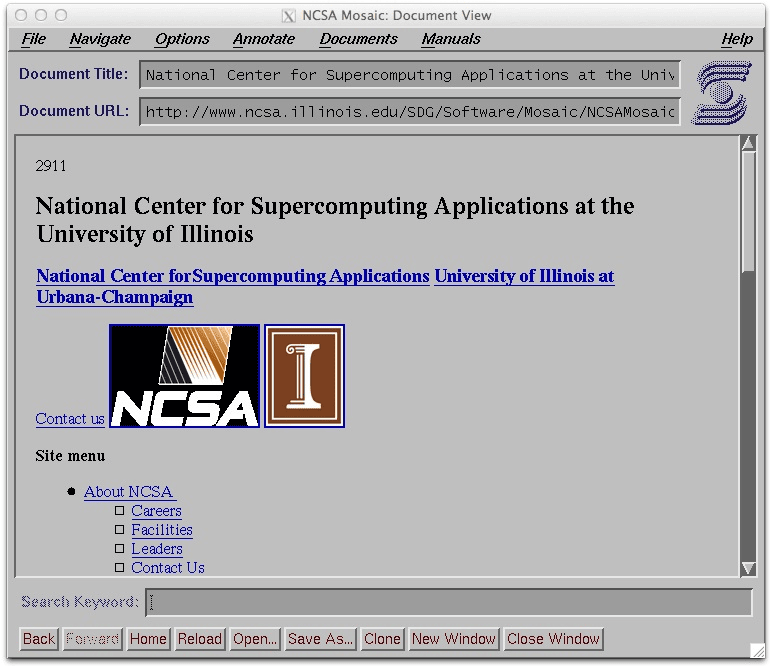
Screenshot of NCSA Mosaic, the first web browser launched in the 90s. Image Wikipedia
Understanding a browser’s interface
A web browser’s interface is the set of visible, interactive elements you see when you open the browser. Here are its main components:
- The address bar (URL): The address bar, also called the URL bar, is where you type the address of a website you want to visit. Once the address is entered, the browser loads the matching page.
- The navigation buttons: These buttons let you move through web pages. They usually include buttons to go back, go forward, reload the page, and return to the browser’s home page.
- The tabs: Tabs let you browse several web pages at once within a single browser window. Each tab shows the page title and can be closed, moved, or duplicated as needed.
- The menu bar: The menu bar holds extra navigation options and advanced browser features. It can include drop-down menus for settings, developer tools, extensions, and more.
- The search bar: Some browsers build a search bar directly into the interface, letting users search the web without going through a separate search engine.
- The extension buttons: If you’ve installed extensions or add-ons in your browser, you can often reach their features through dedicated buttons built into the interface.
- The content area: This is the main space of the browser window where web pages are displayed. It’s where you interact with the content of the sites you visit — clicking links, filling in forms, and so on.
- The status bar: The status bar, usually at the bottom of the browser window, shows information about page loading, hovered links, loading errors, and more.
So what does a web browser actually do?
Web browsers are complex pieces of software that play a crucial role in how we interact with the World Wide Web. Their operation rests on the integration of several key technologies that let them interpret and display web content in a coherent, interactive way.
- Interpreting HTML, CSS, and JavaScript:
- The browser retrieves a page’s HTML, CSS, and JavaScript files from the web server
- The HTML code structures the page’s content, describing its layout and elements
- CSS (Cascading Style Sheets) is used to style and shape the visual presentation of the page
- JavaScript is a programming language used to make web pages interactive and dynamic
- The rendering engine:
- The rendering engine is the browser’s central component, responsible for interpreting and displaying web pages
- It analyzes the HTML, CSS, and JavaScript to build a model of the page (the DOM, or Document Object Model) and a render model (the Render Tree)
- Using these models, the rendering engine displays the page’s content in the browser window in line with the specifications defined by web standards
- Managing network resources:
- The browser handles the network requests needed to fetch the files required to display a web page, such as HTML files, CSS stylesheets, JavaScript scripts, images, and other media resources
- It uses protocols like HTTP (Hypertext Transfer Protocol) to exchange data with web servers
- Managing cookies and sessions:
- Cookies are small text files stored on the user’s computer, letting websites keep track of a user’s preferences and browsing history
- Sessions maintain the state of the interaction between the user and the website, which is essential for features like the shopping cart on e-commerce sites
- Security and privacy protection:
- Browsers build in security features such as secure browsing (HTTPS), malicious-site warnings, and protection against online tracking to keep users safe and private while they browse the web
All in all, how a web browser works rests on a sophisticated blend of technologies that let it interpret, fetch, and display web content efficiently and securely, giving users a smooth and pleasant browsing experience.
The browser wars through history
Web browsers have a rich, fascinating history that goes back to the early days of the Internet. Here’s an overview of how web browsers evolved over time:
- The early days (1990s): The first mainstream graphical web browser was born in 1993 under the name Mosaic, developed by a team led by Marc Andreessen at the National Center for Supercomputing Applications (NCSA). Mosaic was a runaway success that popularized the World Wide Web. Shortly after, in 1994, Netscape Communications Corporation launched Netscape Navigator, which quickly became the most used browser of the era.
- The browser war (late 1990s): Netscape’s dominance was challenged by the arrival of Microsoft Internet Explorer (IE) in the 1990s. Microsoft bundled IE with its Windows operating system, which gave IE a huge edge over Netscape Navigator. This led to a period of fierce competition known as the “browser war”.
- The rise of Firefox and Chrome (2000s): In the 2000s, Mozilla Firefox emerged as an open-source alternative to Internet Explorer, offering users a faster, safer, and more customizable browsing experience. In 2008, Google launched Chrome, a fast, lightweight browser that quickly gained popularity thanks to its speed and simplicity. Developers who started building websites in the 2000s still remember the unpleasant constraints imposed by Internet Explorer’s technological lag (and especially version 6, which for example didn’t support PNG image transparency), even though it was still very widely used. The arrival of these rival browsers hastened its downfall, as it lost market share year after year — much to developers’ delight.
- The rise of mobile browsers (2010s): With the explosion of smartphone and tablet use, mobile web browsers became increasingly important. Browsers like Safari for iOS and Chrome for Android became the dominant choices for mobile browsing.
- Modern browsers (2010s and beyond): Modern browsers like Chrome, Firefox, Safari, and Edge keep evolving to deliver better performance, stronger security, and new features. They also strive to comply with web standards to guarantee maximum compatibility with websites and web applications.
The history of web browsers is marked by a string of innovations, rivalries, and transformations that have shaped the way we reach and interact with the World Wide Web. 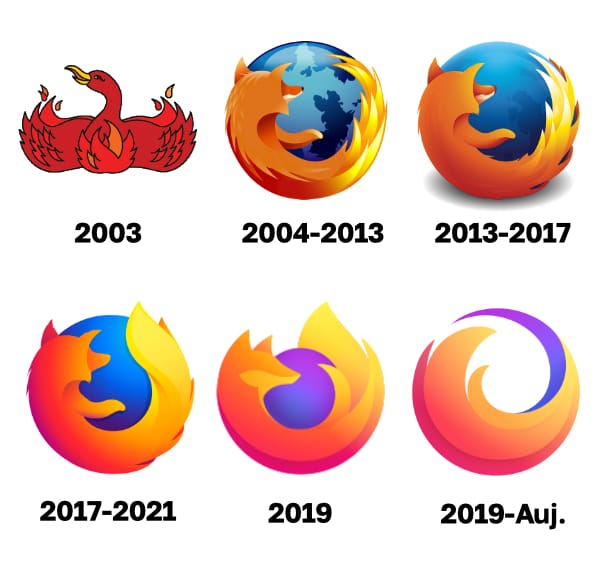
The evolution of the Firefox logo, the first open source browser, since 2003
FAQ
What's the difference between a browser and a search engine?
The browser is the software that displays pages: Chrome, Safari, Firefox, Edge. A search engine, like Google or Bing, is a website you open inside that browser to find pages. In other words, the search engine lives inside the browser, never the other way around.
What is the best web browser (and the safest)?
There's no absolute winner. Chrome dominates on compatibility, Safari shines on Apple devices, and Firefox remains the privacy-friendly open source pick. On the security side, the safest browser is really the one you keep up to date. Personally, I use Arc every day for its rethought interface.
Are web browsers free?
Yes, every major browser is completely free: Chrome, Safari, Firefox, Edge and Arc all download and run without costing you a cent. Their business model rests on other levers, like deals with search engines. So you never have to reach for your credit card just to browse the web.
How do I clear my browser cache?
The cache stores versions of pages to speed up loading, but it can freeze outdated data in place. To clear it, open your browser settings, head to the privacy or history section, then choose "clear browsing data" and tick the cache box. There's often a shortcut too: Ctrl+Shift+Delete, or Cmd+Shift+Delete on a Mac.
How (and why) should I update my browser?
Updating your browser patches security holes and unlocks the latest web features. Most of them update automatically on restart; check the "About" menu, which triggers the update check. It's the simplest thing you can do to browse safely, so don't skip it.
Should I test my WordPress site across several browsers?
Ideally yes, because each browser interprets code a little differently. The good news: the serious tools I recommend, like the Avada theme, are already built to work with modern browsers. A quick check on Chrome, Safari and Firefox is usually all it takes to put your mind at ease.
Comments