
Getting Started with Faaaster: A Tour of the Hosting Dashboard
Your first steps on Faaaster: get to know its dashboard and the different sections the host puts at your fingertips.

In the previous step we saw how to sign up for Faaaster (and claim a free month). Now it’s time to actually get your hands on it. The nice thing about this host is that everything was designed to be intuitive! Let’s explore it together.
The Faaaster dashboard
Once you’re logged in to Faaaster, you land on the host’s dashboard, which shows you straight away the list of your installed WordPress websites. 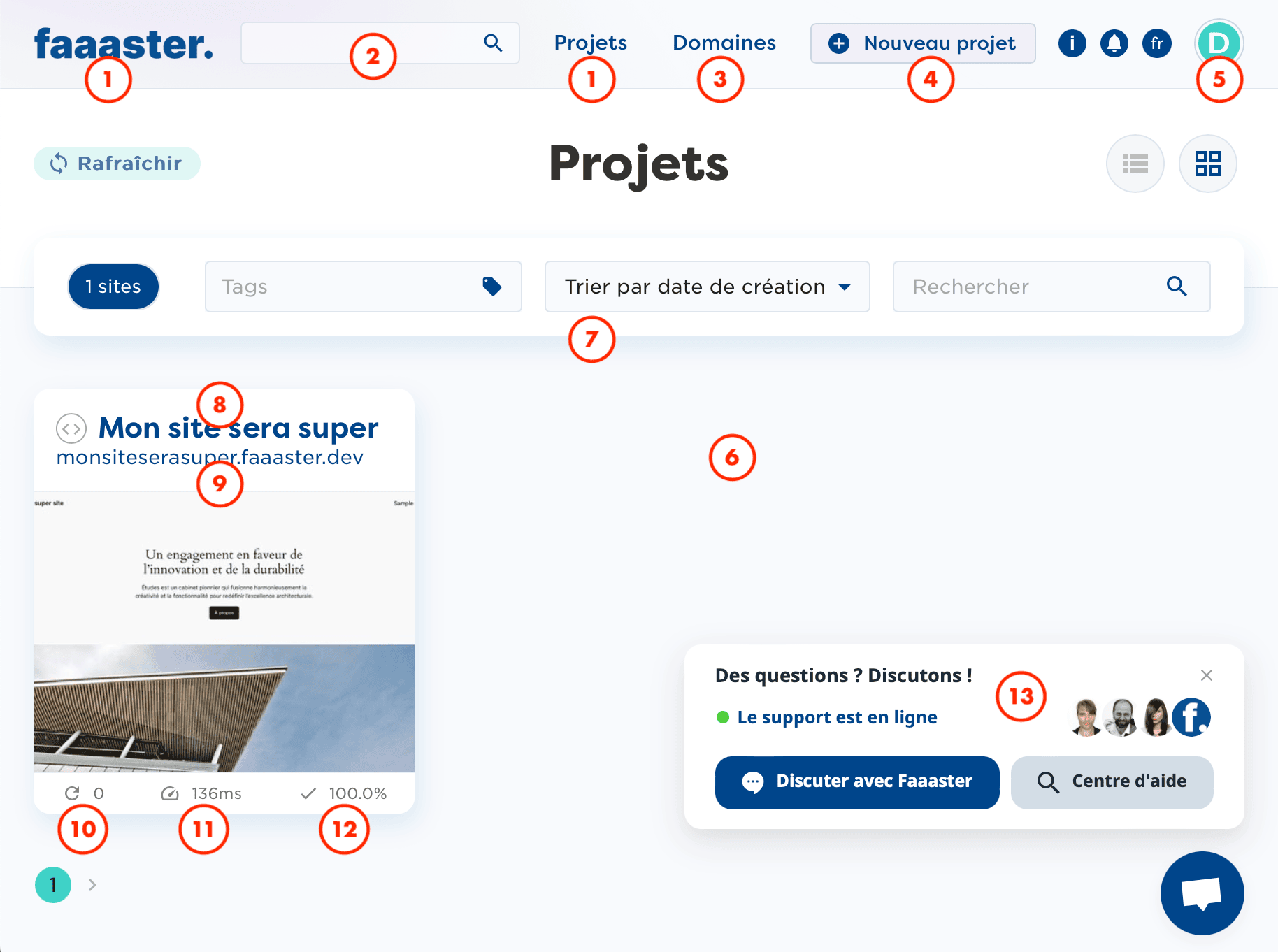
- Dashboard access: shows the list of your WordPress sites (called Projects)
- Search for one of your WordPress sites in particular
- The list of domains you’ve bought or transferred through Faaaster (with DNS zone management and various settings)
- Create a new WordPress website
- Manage your Faaaster account
- The list of your WordPress sites
- Tools to sort your sites if you have several: tags (keywords you manually associate with certain projects), sorting (by: date, disk space, number of pending updates, response time, uptime, or PHP version), and keyword search
- Access to all Faaaster settings for this site
- A preview of your site on the temporary URL Faaaster provides
- Number of pending updates (themes and plugins)
- Loading speed of the homepage
- Uptime percentage, i.e. the percentage of time your site has been reachable since it was created
- Customer support available right there: during business hours, a technician will reply within minutes via this chat; overnight and on public holidays it can vary, but a reply often comes through on weekends too, all the more so if your request is urgent
When you hover your mouse over a project, two new options appear. 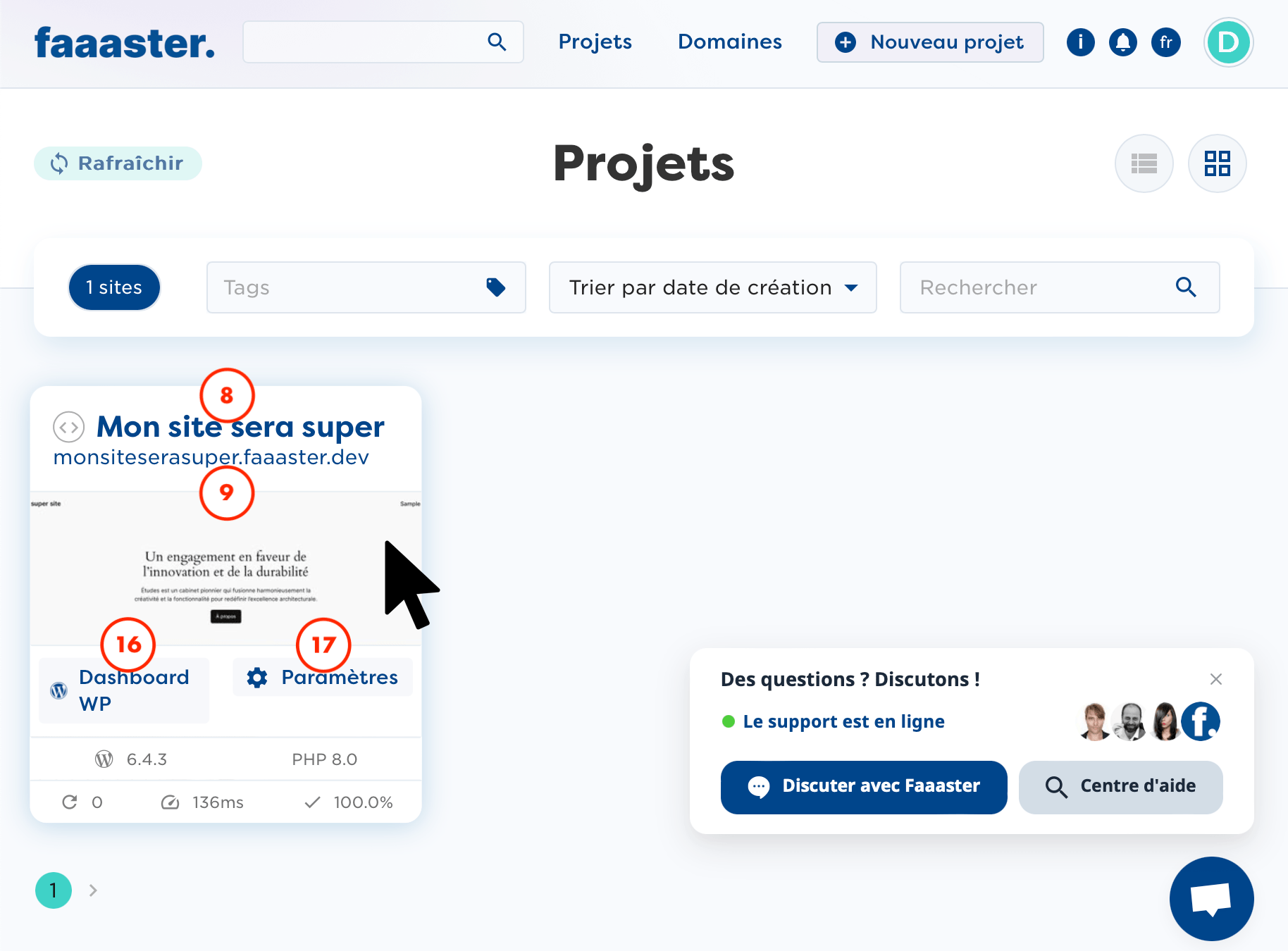 8. Access to all Faaaster settings for this site 9. A preview of your site on the temporary URL Faaaster provides 16. Access to your WordPress dashboard: this logs you into your WordPress admin automatically, without having to sign in with a username and password the classic way 17. Access to all Faaaster settings for this site Now let’s step into your site’s Settings, reachable via either
 8 or 17.
The Faaaster settings for each of your WordPress sites
When you open your WordPress site’s Settings, you land by default on the Overview section. 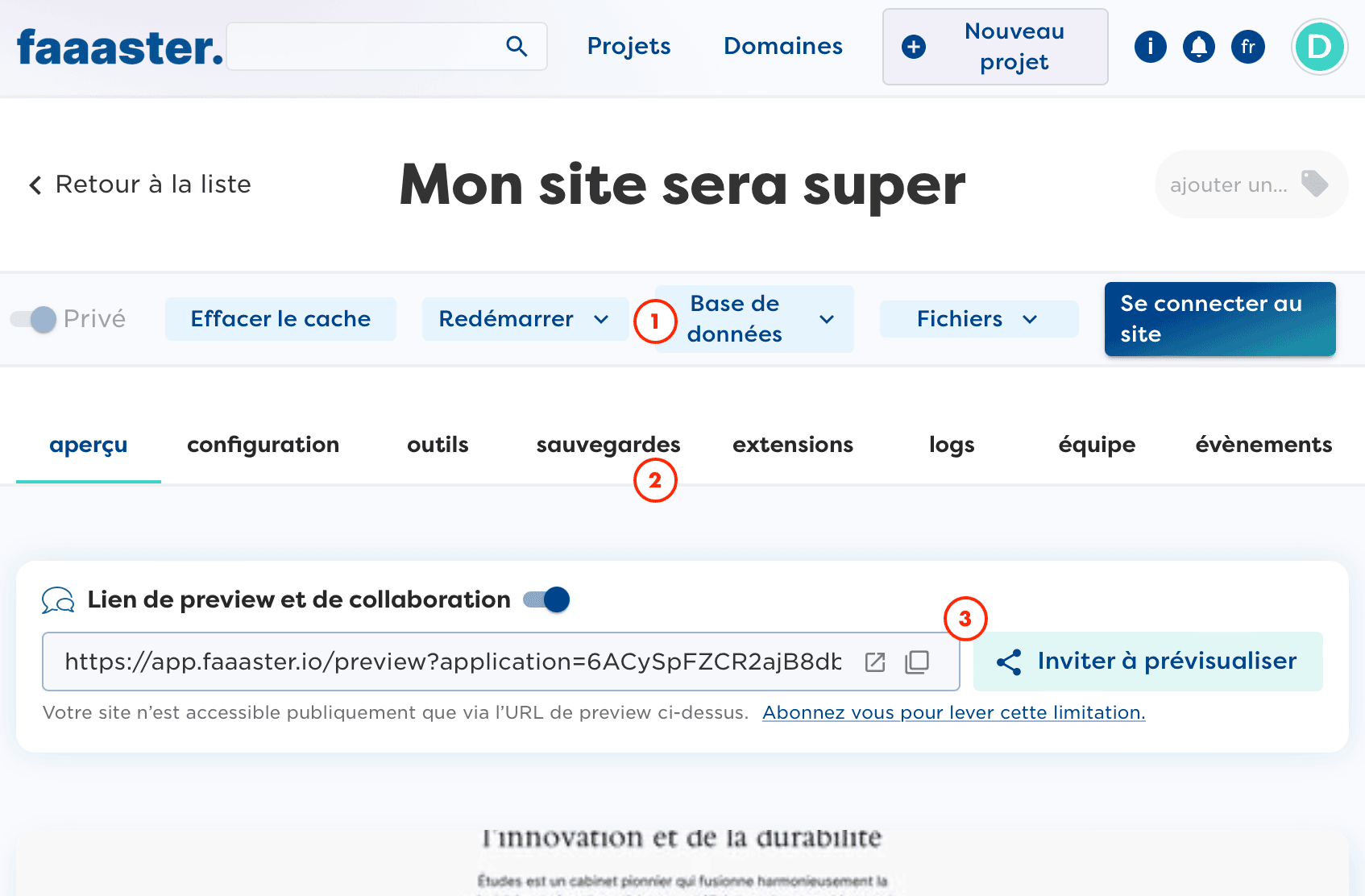 You’ll see two main horizontal menus that follow you wherever you go in your site’s settings:
- Menu 1, which lets you interact directly with your site, to notably:
- Make your site private or public (requires one of Faaaster’s paid plans)
- Clear the cache, including the ones Faaaster creates to boost your site’s performance
- Restart PHP/Nginx or the whole server, useful for instance if you’ve changed a PHP-related setting
- Connect to your site’s WordPress database, or simply look up its credentials
- Access your site’s files straight from Faaaster, or learn more about the SFTP / SSH credentials Faaaster gives you
- Log into your site’s admin without having to sign in with your usual admin credentials
- Menu 2, which gives you access to everything Faaaster offers for your site:
- Overview: the page you land on by default when you open your site’s settings from the previous screen; it gives you a summary of your WordPress’s key information (hosting plan, domain name & HTTPS, uptime, security and performance, your backups, etc.)
- Configuration: where you can change the general environment of your hosting, enable caching to improve your site’s performance, or look up certain credentials to connect to your site’s files or database; we’ll come back to this page later, there’s nothing complicated here
- Tools: fairly similar to Menu 1, this page gives you extra features, such as the ability to Clone your site to create a new WordPress site from your current one, or to archive your site if you want to shut it down
- Backups: where you’ll find all the automatic backups Faaaster runs daily, as well as the manual backups you can trigger whenever you like; it can indeed be handy to run one manually before doing something riskier, like a major WordPress update or updating an important plugin
- Plugins: here you’ll find the plugins installed on your site along with a feature to update them if needed; this screen is very useful for spotting whether some plugins are calling out to be updated for security reasons, for example
- Logs: a feature every developer will love, this page lists in real time the errors detected at the PHP level, making it easier to analyze errors that might appear or slowdowns caused by bugs in the WordPress code, the theme, or a plugin
- Team: because Faaaster also lets you collaborate on the same WordPress site while keeping everyone’s private credentials separate; you can add users who’ll get whatever WordPress role you choose
- Events: a really useful page that keeps a history of every action taken on your site for you; it can be a big help if you want to understand where a malfunction came from
Faaaster’s configuration options are vast, and we’ve only scratched the surface here. Don’t hesitate to explore these different options whenever you like, and even to test them, since you can run backups whenever you want and restore one without stress if you’ve made a mess of something 😁
Well done, you’ve just discovered your Faaaster dashboard.
Ready to keep going on the adventure of building your website?
FAQ
How much does Faaaster cost, and is there a free trial?
Yes, signing up gets you one month free, as the previous step of this guide reminds you. For the full breakdown of pricing and plans, I'd rather point you to Faaaster's official pricing page than quote a figure here: the plans change over time, and I don't want to steer you wrong.
Does Faaaster host anything other than WordPress?
Faaaster is a host built from the ground up for WordPress: the dashboard, the Projects, the automatic backups and the caching are all designed around this CMS. If what you need is a WordPress site, this is its ideal home. For a completely different type of application, it's not the tool I'd recommend.
Can I buy my domain name directly from Faaaster, or do I have to transfer one?
Both are possible. The dashboard shows "the list of domains you've bought or transferred through Faaaster," along with DNS zone management. So you can buy a new domain right there, or transfer an existing one in to keep everything centralized in one place.
How do I migrate an existing WordPress site to Faaaster?
Faaaster offers its own responsive customer support during business hours, and they can walk you through this: migrating an existing WordPress site generally means bringing over your files and your database. For the exact, up-to-date procedure, reach out to the support chat right from the dashboard.
Comments