
The WordPress Dashboard Explained (a Friendly Guided Tour)
Getting to know your WordPress dashboard is the very first step to finding your way around and feeling at home in the admin area.
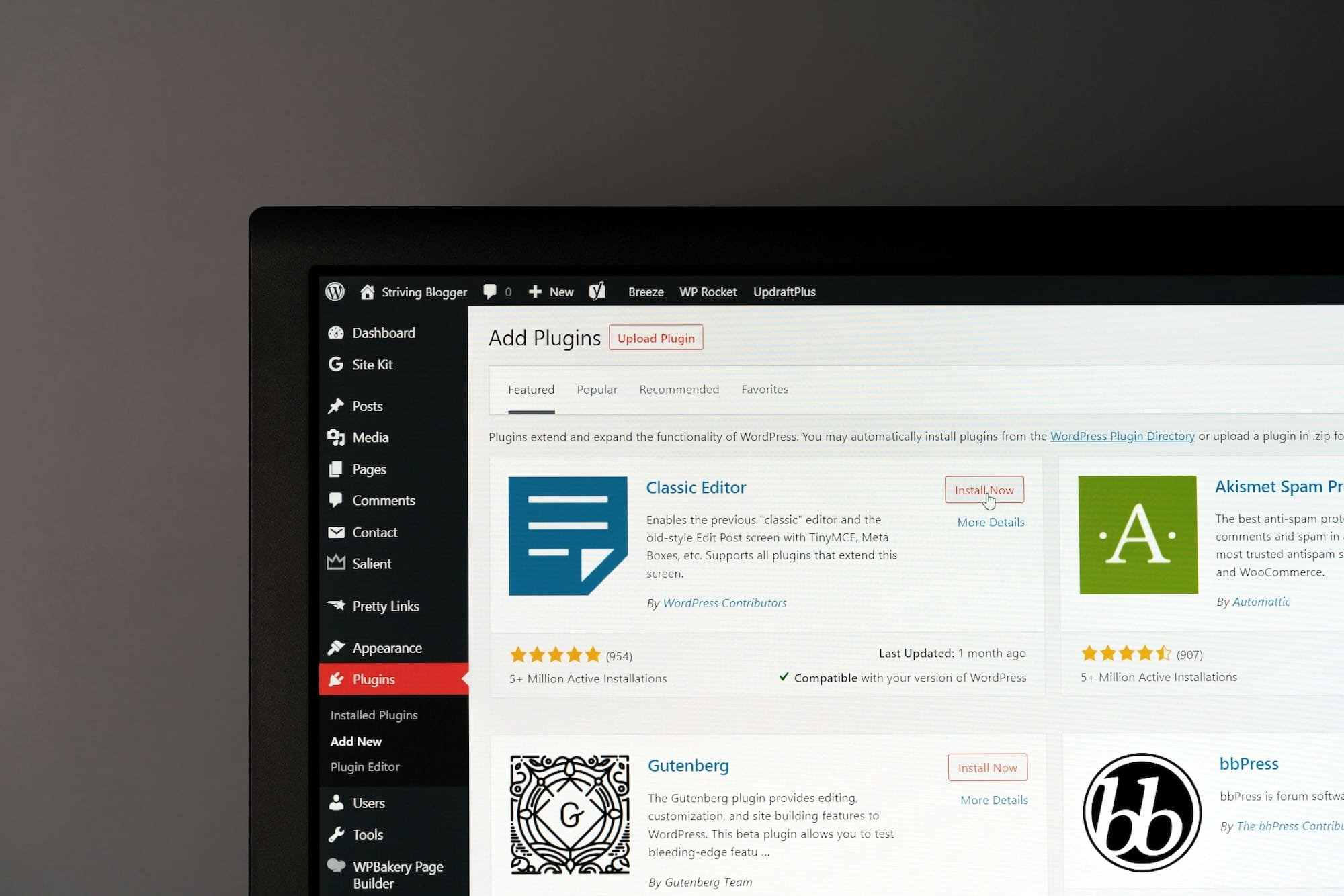
You’re taking your first steps inside the WordPress interface — well done! And the very first thing you see when you log in (via the Faaaster interface or via your admin login page) is your dashboard. Let’s get to know this brand-new interface together!
The two menu bars
Two menu bars will keep you company for as long as you’re logged into your WordPress admin. 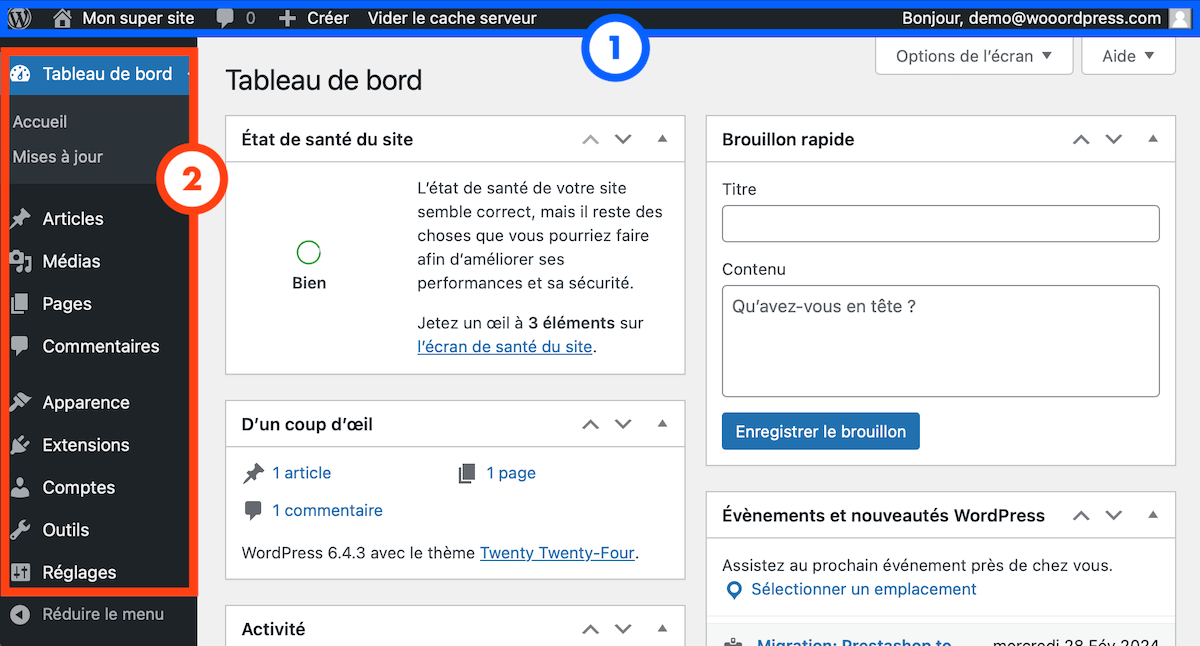 1. The top horizontal bar: present even when you’re browsing the front end of your site, this bar is mainly there to offer you handy shortcuts (like the one that lets you edit the page you’re currently viewing — more on that shortly) 2. The left sidebar: the place where you’ll find EVERYTHING: your site settings, your content, your plugins, and so on. Every bit of managing your site happens from that left sidebar.
A quick tour of the top-bar shortcuts
As I just mentioned, this bar is present even when you’re viewing the front end of your site, and it gives you access to some genuinely useful actions. 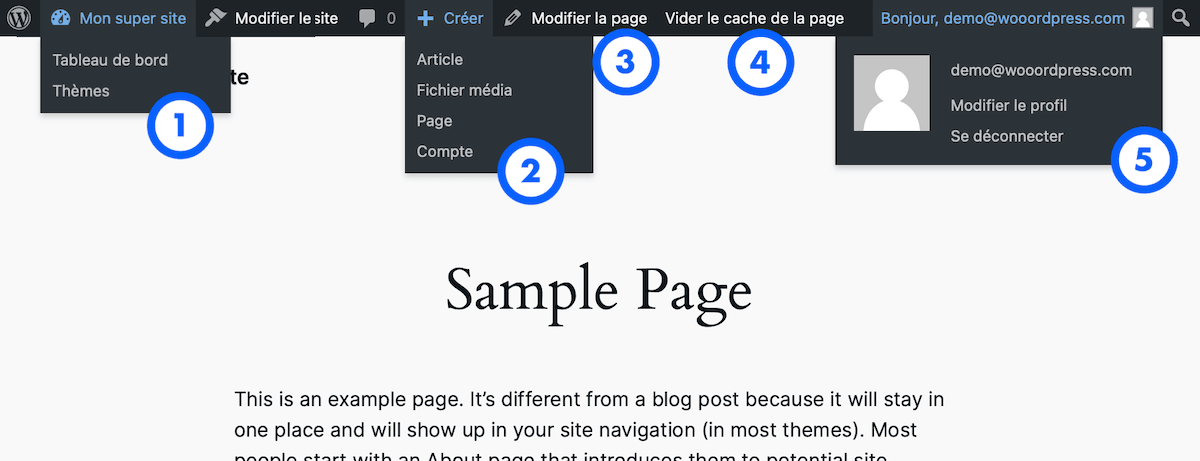 Here’s what you can do with it:
- Jump back to your dashboard by clicking your site’s name on the far left of the bar (“My awesome site” in the image above); hovering over it also offers, among other things, a link to your dashboard — it’s actually the very same place. Offering the same destination again in a submenu is very typical of WordPress menus, by the way.
- Create new content, such as a Post or a Page
- Edit the current page: clearly the most-used shortcut after
1, clicking “Edit Page” takes you straight to the interface for editing the page you’re currently on. As we’ll see, you can also reach the editor for any page from the dashboard sidebar, but this shortcut stays especially handy. - Clear the page cache: a shortcut added by the Faaaster host so you can flush the cache it generates
- Log out of your administrator account or open your WordPress account details
Now you know it all! Time to get to grips with the vertical menu of your WordPress dashboard — the place where you’ll spend most of your time!
The WordPress dashboard sidebar
So this sidebar is where you manage your content and configure absolutely everything, which makes up the bulk of the actions you’ll need to build your site. We’ll explore each of the features that will be useful to you, one by one. Now that you know how to find your way around your WordPress dashboard, it’s time to start setting up your site!
And what’s next? Here are the first 4 things you absolutely must do!
The 4 things to do the first time you log into your WordPress admin
FAQ
What's the difference between the WordPress dashboard and my hosting control panel?
They're two separate layers. Your host's interface (Faaaster, for example) manages the server, backups, the domain and the WordPress install itself. The WordPress dashboard manages your site's content: pages, posts, plugins, settings. In short: the host hosts, WordPress builds.
How do I customize or rearrange my WordPress dashboard (Screen Options, hiding widgets)?
At the top right of most pages, the "Screen Options" button unfolds a row of checkboxes: uncheck the widgets you don't need on the dashboard home. You can also drag and drop each block to reorder it. Nothing is permanent, everything comes back with a single click whenever you want it.
Does the WordPress dashboard look different for each user role (administrator, editor, author)?
Yes, and that's by design. An administrator sees everything; an editor manages content but not plugins or settings; an author only sees their own posts. The sidebar adapts to the role, so fewer permissions means fewer menu items shown. It's a security feature, not a bug.
My WordPress sidebar disappeared or a menu item is missing — what should I do?
Don't panic, it's rarely truly gone. On a small screen the sidebar collapses: click the icon at the top left to reopen it. A missing menu item usually comes from a deactivated plugin or a limited role. Reload the page, and if needed log back in with an administrator account.
Comments