
How to Set Your WordPress Language, Date Format and Timezone
WordPress isn't always installed in the language you want — a few simple settings switch its language and get your date, time and timezone right.
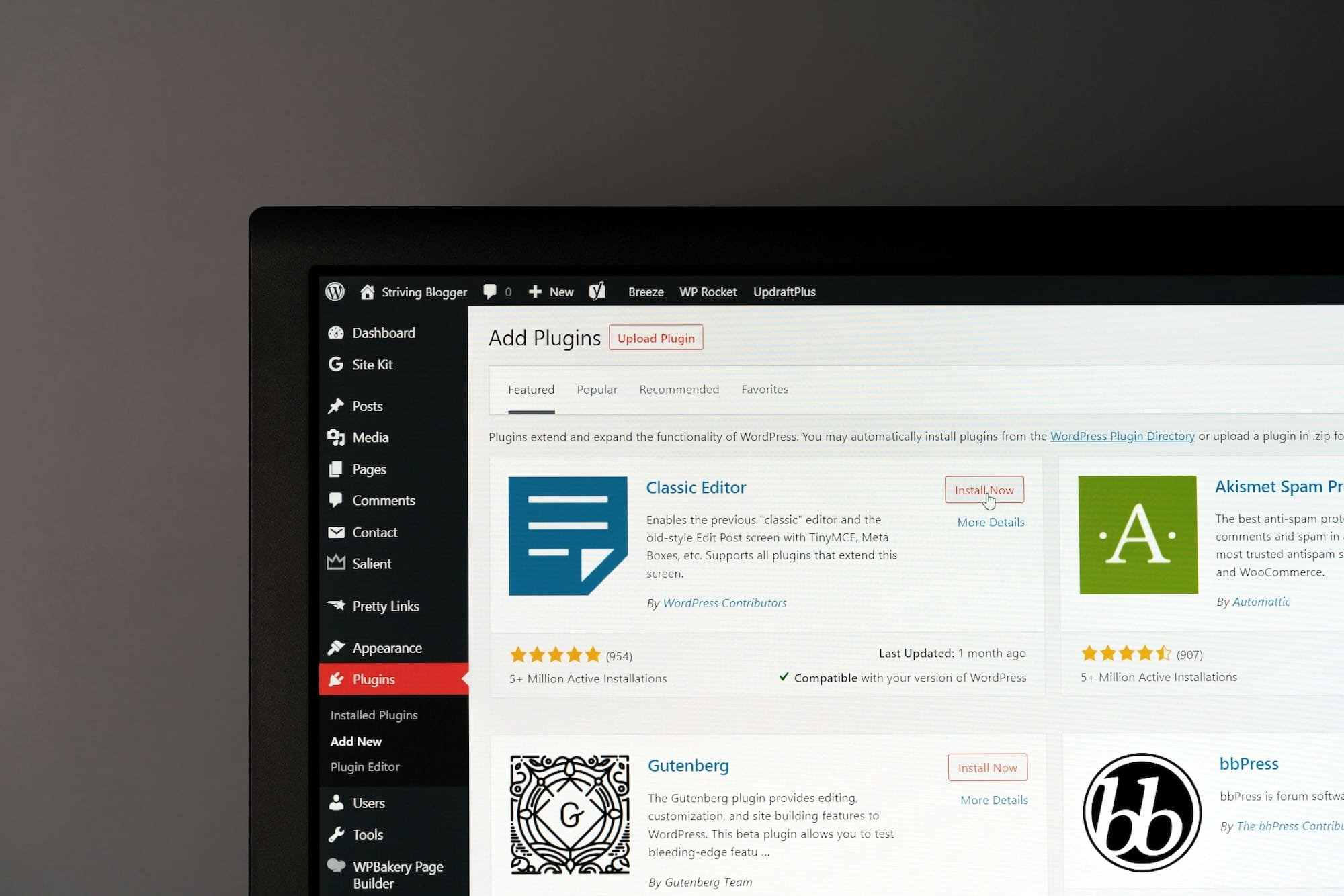
It’s common for a fresh WordPress install to be in a language that isn’t yours — often English by default. But switching it to the language you want is quick and simple, along with a couple of extra settings for the timezone and date format so everything is ready for what comes next. Let me walk you through it.
Why isn’t WordPress in my language by default?
For two reasons:
- Because WordPress is originally an English-speaking project, founded by Englishman Mike Little and American Matt Mullenweg in 2004 — even though it grew out of a project started by the French developer Michel Valdrighi, which he later stopped maintaining. So WordPress ships by default in the language of its creators.
- But it’s also, and above all, because WordPress is an open source project — a free project that has to be accessible and usable by the whole world. Like every open-source project, WordPress therefore uses the international default language: English.
That said, the WordPress interface and its entire ecosystem (official sites, official plugins and themes, and so on) are already translated into more than 150 languages — a gigantic effort led by teams of volunteers around the world. Naturally, the most widely spoken languages are also the most actively maintained.
And there you go! Your entire WordPress interface is now in your language. Now that we’re in the General section of Settings, we can take a moment to change two more things: the site’s timezone, and the date and time formats — settings that matter more than you’d think.
Setting the WordPress timezone
Every action you take on your WordPress site — editing a page, for example — gets saved. WordPress records the dates and times of your changes and saves within your site. So it needs to know your timezone to record them accurately. This also matters if you use a plugin to back up your site at a specific time: if WordPress thinks you’re on UTC when you’re actually in New York, your backups will never fire at the right hour.
The video a little further down shows these steps.
Setting the right date and time formats
This is another setting that matters: the dates and times displayed on your site depend on it — blog posts are a good example, since they usually show their publication date. And formats vary a lot from one language and culture to another.
The video below shows every step for changing both the timezone and everything related to date and time formats.
Perfect — your WordPress install is now properly set up in your language!
Have you also taken care of the other priority actions on your WordPress dashboard?
If not, here’s the article that walks you through everything:
The 4 essential steps to take on your first login to the WP admin
FAQ
Does changing the language affect the admin, the public site, or both?
The "Site Language" setting translates both your admin interface and everything WordPress shows on the public side: dates, messages, theme buttons. It's a global choice. That said, each user can have their own admin language without touching the visible site.
How do I make my WordPress site multilingual (multiple languages)?
WordPress only handles one language by default. To publish your content in several languages, you need a dedicated plugin like Polylang or WPML: you duplicate each page in each language, and a switcher lets visitors choose. Plan this early — migrating after the fact is tedious.
How do I change the language for a single user without changing the whole site?
It's possible, and handy when a team is multilingual. Under "Users > Your Profile" (or when editing a user), the "Language" option lets each person display their admin in their own language. Set to "Site Default," the person follows the global language; otherwise, their preference applies to them alone.
What if a plugin or theme stays in English after I change the language?
Often the translation for your language simply doesn't exist yet — no volunteer has produced it. First check for updates to the plugin or theme, then go back to "Settings > General" and re-save. If nothing changes, the author hasn't provided a translation file for your language.
Why are my site's dates and times off even after setting the timezone?
Make sure you picked your city ("London," "New York," for example) rather than a fixed "UTC+1" offset: a fixed offset ignores daylight saving time. With the city, WordPress switches automatically summer and winter. An overly aggressive cache can also freeze old times: clear it after making changes.
Comments