
Create a Perfect WordPress Favicon From One Image
A modern favicon isn't one 16×16 file—it's a dozen formats for tabs, iOS, Android and Windows. Generate them all, plus the manifest files, from a single square image.
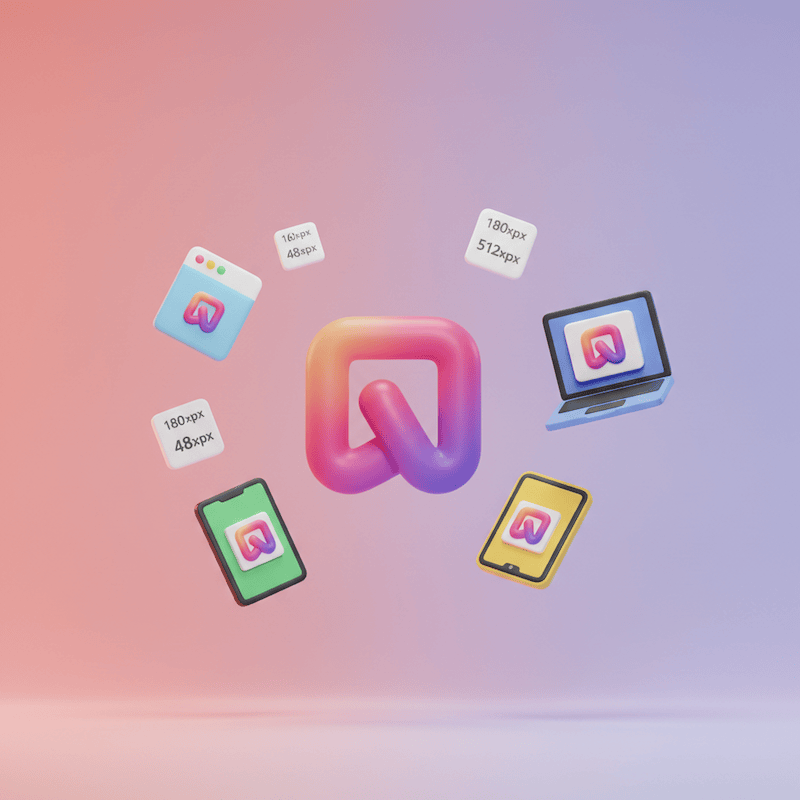
A favicon is a tiny thing—the little icon in a browser tab, a bookmark, a phone home screen—and it’s one of the first signals that a site is finished rather than half-built. But “add a favicon” quietly became a real chore. Dropping a 16×16 .ico in your root directory hasn’t been enough for years. Browsers, iOS, Android and Windows each want their own formats and sizes, plus manifest files to tie them together. Here’s how to produce the whole set from a single image—and never think about it again.
The essentials
- A complete favicon today means
favicon.ico+ PNGs at 16, 32, 48, 180, 192, 512 and a Windows tile—not a single file. - It also needs a
site.webmanifest(Android/PWA) andbrowserconfig.xml(Windows tiles) plus a set of<head>tags. - WordPress’s built-in Site Icon is incomplete—limited sizes, no manifest, no theme colour or Windows tile.
- The Favicon Generator builds all of it from one upload of a 512×512+ square image, with a theme colour and background colour.
- Rebrand in one step: upload a new image and every format, file and tag regenerates—no manual editing.
Which favicon formats do you actually need?
Here’s the full set a modern site should serve:
| File / format | Size | Used for |
|---|---|---|
favicon.ico | 16×16, 32×32, 48×48 | Browser tabs, bookmarks, anything requesting /favicon.ico directly |
| Apple Touch icon | 180×180 PNG | iOS home screens |
| Android Chrome icons | 192×192 and 512×512 PNG | Android home screens and Progressive Web Apps |
| Windows tile | 150×150 | Pinned sites on Windows |
site.webmanifest | JSON file | Tells Android browsers about your icons and theme colour |
browserconfig.xml | XML file | Config for Windows tiles |
That’s a lot of files and <head> tags for something that ought to be simple—which is exactly why doing it by hand is a chore you don’t want to repeat every rebrand.
Why isn’t one .ico (or the Site Icon) enough?
The manual route is: use an online generator, download a ZIP, upload the files to your server, and paste the HTML tags into your theme’s header—then repeat the entire dance every time your logo changes, hoping you don’t miss a format.
WordPress’s built-in Site Icon in the Customizer helps, but it’s partial: it generates a limited set of sizes and doesn’t create the manifest files, so PWA icons, theme colours and Windows tiles simply aren’t covered. You end up back at the manual generator for the rest.
How do you generate every format automatically?
Activate the Favicon Generator module in Blaminhor Essentials, upload one square image of at least 512×512, and pick a theme and background colour. On save it generates every format—favicon.ico, Apple Touch, Android and Windows tile—writes site.webmanifest and browserconfig.xml, and injects the correct <head> tags automatically. Three steps:
One square image and two colours in—every favicon format, manifest file and head tag out.
- Upload one image. A single high-resolution square image, at least 512×512. A logo or symbol on a transparent or solid background works best.
- Set your colours. Pick a theme colour (the browser bar tint on mobile) and a background colour (for Windows tiles and Android splash screens).
- Save. The module generates every format—
favicon.ico(and copies it to your site root), the full PNG set, the Apple Touch icon, Android icons and the Windows tile—servessite.webmanifestandbrowserconfig.xml, and injects the correct<head>tags into your site.
One image in, a complete favicon everywhere out.
Updating your favicon later
Rebranding used to mean re-running the whole generator-and-upload ritual. Here it’s one action: upload the new image and everything regenerates—every size, both manifest files, and all the head tags. No files to manage, no code to touch, no meta tags to hand-edit. And because the module emits nothing until icons are actually generated, it never leaves broken tags pointing at files that don’t exist.
A crisp favicon is a small part of a site feeling finished—it pairs naturally with tidy image handling across the rest of your media.
Favicon Generator is one of the 20+ tools in Blaminhor Essentials—free and open-source on WordPress.org.
– blaminhor
FAQ
What size should my source favicon image be?
At least 512×512 pixels and square, so every smaller size can be generated cleanly without upscaling. A logo or symbol on a transparent or solid background works best—fine detail and text tend to disappear at 16×16, so simpler marks read far better as a favicon.
Why is my favicon not showing up in WordPress?
Usually your browser is showing a cached version, or the head tags point at files that aren't actually there. The Favicon Generator injects the correct tags and copies favicon.ico to your site root automatically, so the files exist—then a hard refresh clears the stale icon your browser stubbornly held onto.
How do I force browsers to refresh a cached favicon?
Favicons are cached aggressively. A hard refresh—Ctrl+F5, or Cmd+Shift+R on a Mac—usually does it; failing that, open the icon's URL directly, or check in a private window. Regenerating the favicon changes the files the tags point to, which nudges most browsers into fetching the new one.
Can a favicon be an SVG, or must it be PNG/ICO?
Modern browsers do accept an SVG favicon for tabs, but iOS home screens, Android and Windows tiles still expect PNG and ICO at fixed sizes—so an SVG alone won't cover every surface. That's why the generator builds the full raster set from your one image rather than leaning on a single scalable file.
Can I add a favicon without a plugin?
Yes—generate the files with an online tool, upload them to your server, and paste the head tags into your theme by hand. It works, but you repeat the whole ritual on every rebrand and risk missing a format. A generator module does the same job from one upload and updates everything in a click.
Comments