
WordPress Two-Factor Authentication: Free 2FA Setup
Two-factor authentication asks for a code or key after the password. How to set up 2FA on WordPress for free, which method to pick and how to get back in.
Two-factor authentication (2FA) asks for a second proof after the password, such as a six-digit code from your phone, so a stolen or guessed password is no longer enough to get into your WordPress admin.
The essentials
- Two-factor is off by default: you switch it on, then each person enrols from their own profile. Nobody can enrol a device for someone else.
- Four methods: authenticator app, security keys and passkeys, codes by email, backup codes.
- You choose who must use it by role, with a grace period (7 days by default) before the admin sends them to set it up.
- You can recover: backup codes, a command-line reset for one account, or a line in
wp-config.phpthat switches the module off. - The Login Security module is stable (it was labelled Beta before version 2.8.0), and also holds the failed-attempt limit, a password policy and a sign-in journal.
What is two-factor authentication on WordPress?
It is a login that needs two different proofs: something you know (your password) and something you have (your phone or a security key). If someone guesses or steals the password, the second proof is still missing. A stolen password gives no sign by itself: whoever has it just signs in. With a second factor, the password alone no longer opens the account. CISA, the US cybersecurity agency, puts it this way: “Even if an unauthorized user steals your password, they won’t be able to meet the second step requirement to access your accounts.”
It matters on WordPress because the login page is public and attacked all day by bots that try passwords (brute-force attacks). A failed-attempt limit slows them, and a second factor stops the ones who get lucky.
Which two-factor method should you choose?
Choose a security key or passkey if you can, an authenticator app for everyone else, and keep email codes as the last fallback. The four methods of Blaminhor Essentials differ by what you need and what they resist:
| Method | What the person needs | Good to know |
|---|---|---|
| Authenticator app | A phone with Google Authenticator, 1Password, Bitwarden or similar | Six digits, renewed every 30 seconds; works offline; the site tolerates about 30 seconds of clock difference |
| Security keys and passkeys | A hardware key, Touch ID, Windows Hello | The only method a fake login page cannot phish (a phishing page can copy a code you type, not a passkey; NIST SP 800-63B calls this phishing resistance), though backup codes made alongside can still be typed into a fake page, so keep them private; needs HTTPS |
| Codes by email | Access to their mailbox | The fallback; only as strong as the mailbox; a code is valid 10 minutes, five wrong tries cancel it, a new one can be sent after 60 seconds |
| Backup codes | Ten single-use codes kept somewhere safe | Created automatically with the first method; the way back in after a lost phone |
How do you enable two-factor authentication in WordPress?
Switch on the module, turn on two-factor, choose the methods, then each person sets up their own. With Blaminhor Essentials:
- Install and activate the plugin, then switch on the Login Security module.
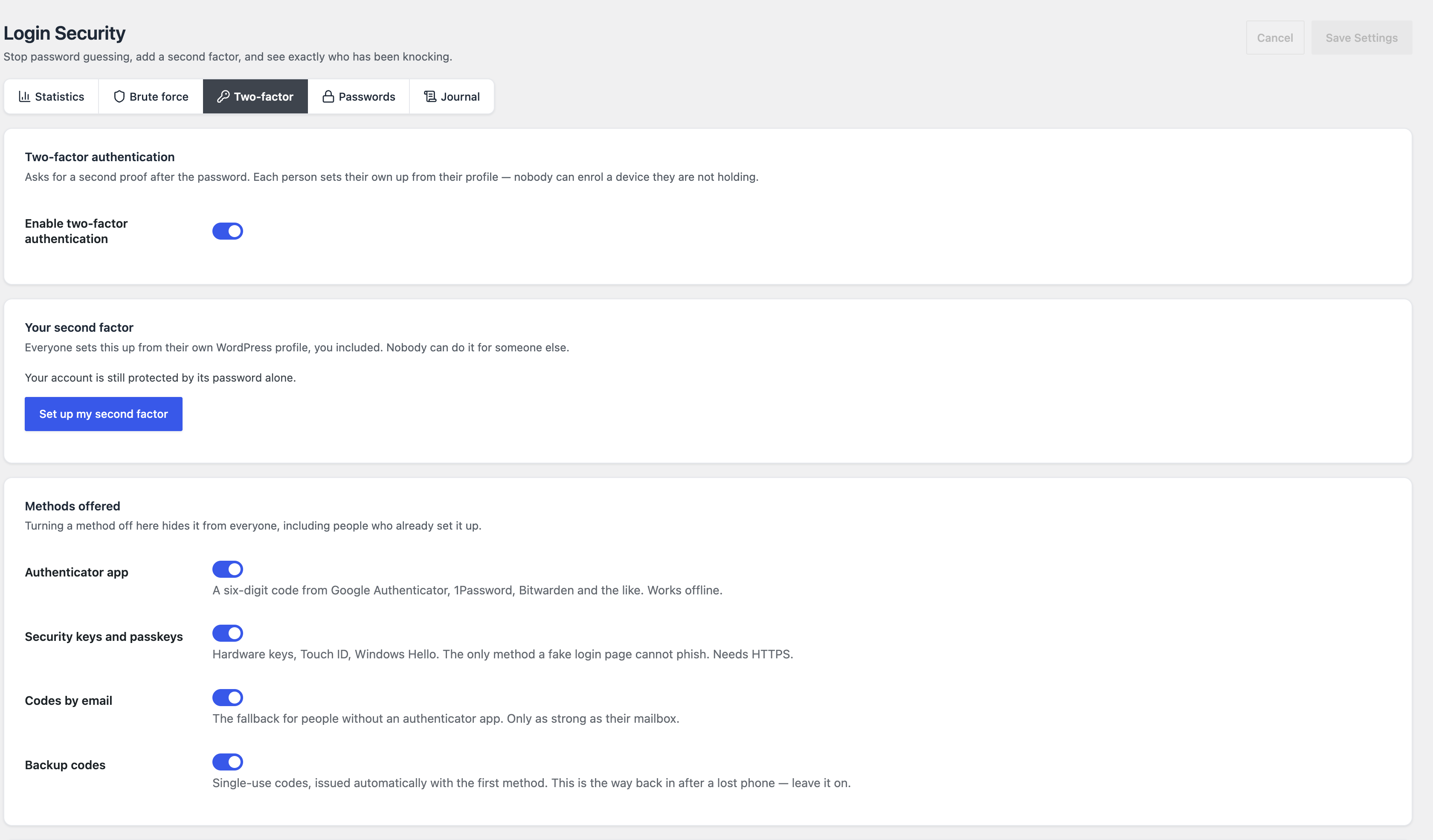
- Open the Two-factor tab and switch on Enable two-factor authentication.
- Under Methods offered, keep the methods you want. Turning a method off hides it from everyone, including people who already set it up: before you do, make sure they have another method left (backup codes count as one).
- Click Save Settings, then Set up my second factor, which only appears once the setting is saved. It opens your own profile, since nobody can set it up for someone else.
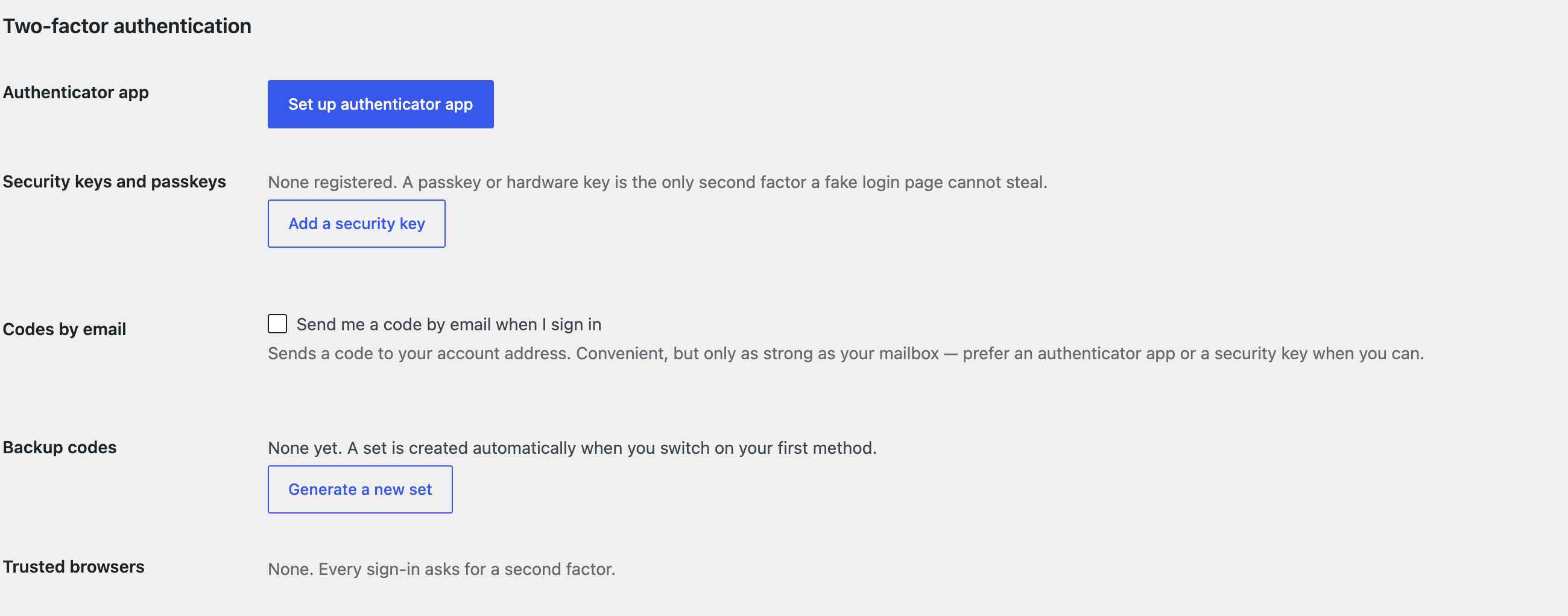
- In the profile’s two-factor section, click Set up authenticator app, scan the QR code with your app (or type the key shown under it), and enter the code the app displays. Nothing is switched on until that code is accepted, which proves the app works.
- Save the backup codes it generates.
Who should be required to use it?
Administrators first, then anyone who can publish or manage users. In the Who must use it section, pick the roles that must use two-factor. Their users keep working until the grace period ends (7 days by default, 0 means straight away), then the admin sends them to their profile until a method is set up (the plugin’s own screens stay reachable, so the requirement can still be lifted). They are never locked out of the account.
The Trusted browsers option lets a person skip the second step on a browser they have already proved themselves on (30 days by default). Sign-in alerts (off by default) email the account holder when an account in the roles you choose (administrators by default) signs in from an IP address not seen before for it. The first sign-in after you switch them on is recorded without an alert, and for an account with two-factor the alert is sent after the second factor is accepted, so it complements the second step and does not replace it.
What if you lose your phone or lock yourself out?
Use a backup code first. Each of the ten codes works once. If none is left, the module has three ways back in, none of which needs database access (two use WP-CLI, the command-line tool for WordPress that your host may provide):
- Reset one account from its profile: an administrator can remove another account’s second factors there. From the command line,
wp blaminhor login-security reset-2fa <username>does the same for an account that lost its phone. - Lift a lockout on an IP address after too many failed logins:
wp blaminhor login-security unlock <IP address>. - Switch the module off by adding
define( 'BLAMINHOR_ESSENTIALS_DISABLE_LOGIN_SECURITY', true );towp-config.phpover FTP (the file transfer access to your server).
Do not replace the secret keys of wp-config.php to get back in. The plugin encrypts each authenticator secret with the AUTH_KEY line of that file, so new keys make them unreadable for everyone: the app is forgotten, the backup codes and trusted browsers stop working, and an account that still had backup codes is asked at login for one that can no longer be checked, until it is reset by one of the three ways above. Security keys and email codes are not affected. The keys do have to change after a hack; the recovery guide lists what to set up again afterwards.
Print or store the backup codes at set-up time, so you never need these.
Does two-factor authentication stop a WordPress site from being hacked?
No: it stops someone from signing in with a stolen or guessed password, and nothing else. A flaw in an out-of-date plugin, a vulnerable theme or a stolen SFTP password gives access without going through the login page. Two-factor is one lock among several; keeping everything updated is another. If the site is already compromised, the step-by-step recovery guide covers what to do.
Two cheap additions work beside it: the failed-attempt limit in the same module (10 failed attempts in 15 minutes locks the address for 30 minutes by default), and moving the login page to an address bots do not guess.
How does it compare with other two-factor plugins?
Pick a dedicated two-factor plugin if you need its specific features; pick Essentials if you want login limits, a journal and two-factor in one free plugin. Active installs are read from WordPress.org on November 10, 2026:
| Plugin | Active installs | Notes |
|---|---|---|
| Two Factor | 100,000+ | Dedicated plugin; each user configures their own, and administrators can configure it for others by editing their profile |
| WP 2FA | 100,000+ | Dedicated two-factor plugin |
| Two Factor Authentication | 20,000+ | Dedicated two-factor plugin |
| Wordfence | 5+ million | Security plugin; lists 2FA and passkeys among its features, together with a malware scanner |
| Blaminhor Essentials | 80+ | Login Security module: throttle, journal, password policy, four 2FA methods; nobody can enrol a device for someone else |
Essentials is new and has 80+ active installs, against 100,000+ for the largest dedicated plugins, so there are fewer public reviews to lean on. For the full set of jobs a site needs plugins for, see the best WordPress plugins guide.
– blaminhor
FAQ
Is two-factor authentication built into WordPress?
By default a WordPress login asks for a password only, and adding a second step takes a plugin. Options in the official directory include Two Factor and WP 2FA (100,000+ active installs each), Wordfence (2FA among its features) and Blaminhor Essentials, whose Login Security module has two-factor off until you switch it on.
Which authenticator app should I use?
Any app that makes six-digit codes that renew every 30 seconds works: Google Authenticator, 1Password and Bitwarden are named in the plugin's settings. The code is computed on your phone from a secret shared once, so it works without a network connection.
Do security keys and passkeys work on any WordPress site?
They need the site to be served over HTTPS, the secure version of the web address. On a site still on plain HTTP, Blaminhor Essentials hides the security key option and offers the other methods. Passkeys use your device's own unlock: Touch ID, Windows Hello or a PIN.
Are codes sent by email enough?
They are the weakest of the four methods, because they are only as strong as the mailbox that receives them: whoever opens the mailbox sees the code. Use them as a fallback for people without an authenticator app, and prefer an authenticator app or a security key for administrators.
Will two-factor slow my team down at every login?
Not every time. A person can mark a browser as trusted after passing the second step, and that browser skips it for 30 days by default (an account remembers up to 20 trusted browsers). The second step is asked again on a new browser, after the trust period or after you revoke it.
Comments