
WordPress Hacked: What to Do, Step by Step
A hacked WordPress site follows the same recovery path: document, contain, back up, lock down, clean, update. What a plugin can and cannot do in each step.
A hacked WordPress site means someone gained access to your files, your database or your admin accounts and used them without your permission. The recovery follows the same order whatever the damage: write down what you see, shut the door, keep a copy, change the locks, clean, then find how they got in.
The essentials
- Document, then contain. Write down what you see, the time and timezone, and the last change you made (a new plugin, a theme edit); then a maintenance page returns HTTP status 503 (“temporarily unavailable”) to visitors and search engines.
- Back up the infected state before changing anything. It is evidence, not a restore point.
- Reset all access: every user, SFTP (the secure file access to your server), the hosting panel, the database, and the secret keys in
wp-config.php. - Clean with fresh files. Replace core with the same version, check plugins and themes, look at
.htaccess. - Update, then change the passwords again once the site is clean, and find the entry point.
How do you know your WordPress site was hacked?
Look for clear signs: a blacklisting by Google or Bing, a host that suspended the site, visitors whose antivirus flags it, your site used to attack others, new users you did not create, or a page that looks defaced. WordPress.org lists these as “indicators of compromise” and asks you to describe the exact symptoms when you request help, because “hacked” covers very different cases. Spam sent from your server is another common sign.
Open the Security issues report in Google Search Console: if Google’s evaluation found your site hacked or harming visitors (phishing, malware), the report shows what it found. If it is empty and nothing else matches, your problem may be a broken plugin rather than a hack; fatal error recovery covers the white screen case.
What should you do first?
Stay calm, write down what you see and when, then put the site behind a maintenance page. Note the time and timezone, the symptoms, and your latest actions (a new plugin, a theme change). This notes file becomes the incident record for you, your host or a professional.
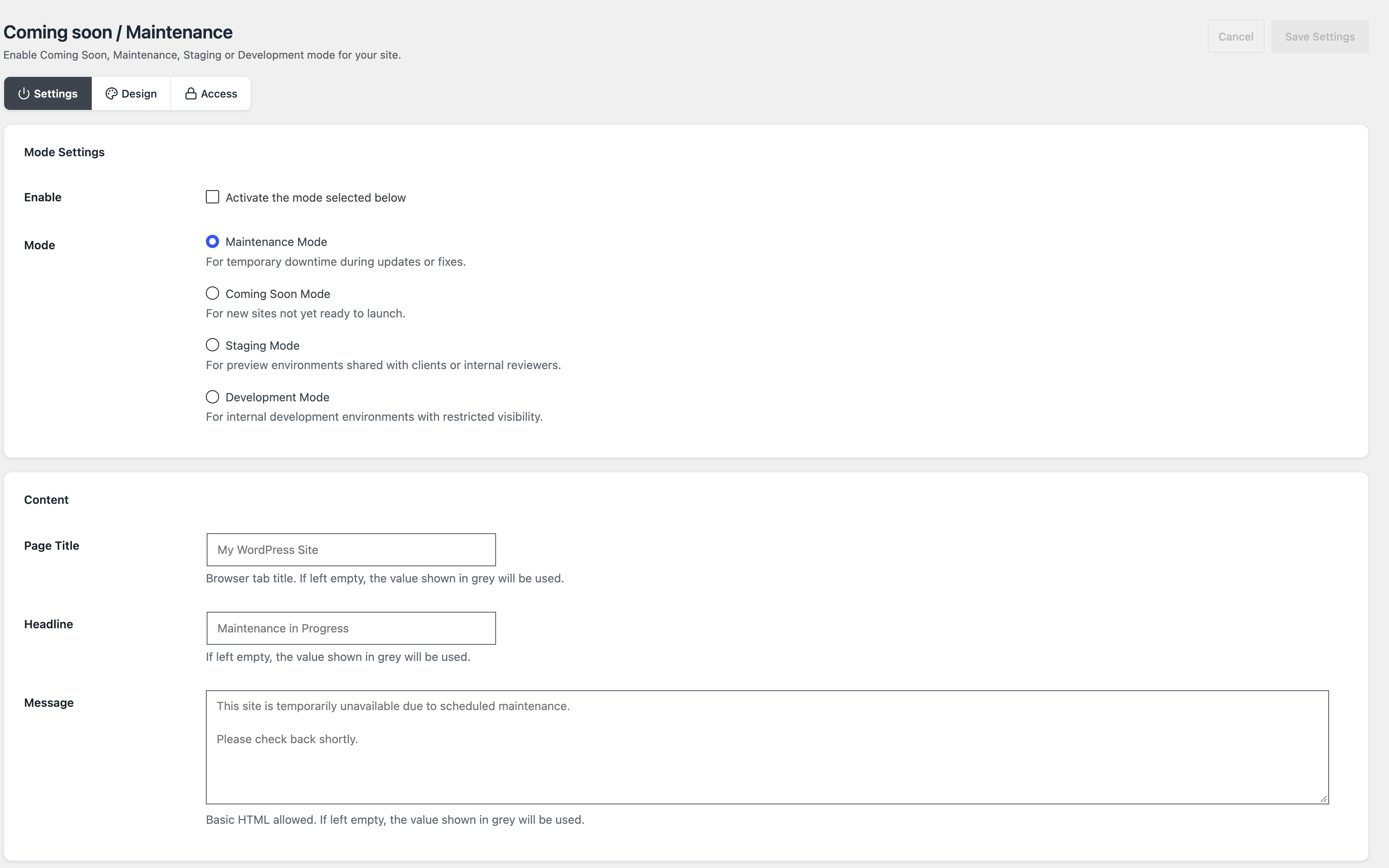
Then contain the problem. A maintenance page tells visitors the site is down and returns the 503 status, which tells search engines to come back later instead of indexing what they see. In Blaminhor Essentials, the Maintenance module does this, and its Access tab keeps chosen roles and IP addresses able to work on the live site. The maintenance mode guide shows the setup.
Why take a backup of a site that is already infected?
Because it is a record of what happened and something to compare against if the cleaning goes wrong. WordPress.org’s guide asks for a snapshot before cleaning, even of an infected site, since a hack can cause trouble in unexpected ways. Label it “infected” and never restore it to the live site.
In Blaminhor Essentials, the Backup & Restore module makes archives of the database, plugins, themes and uploads by default (WordPress core and the rest of wp-content are off by default). Four things to know before you rely on it:
- Scheduled backups are off until you switch them on, and so is the automatic backup before updates. If you never did, you may have no recent copy.
- The plugin keeps a limited number of copies: 5 manual backups by default, and making a new one deletes the oldest. Download your older backups off the server first, so the last clean copy cannot be deleted by the infected one.
wp-config.phpand.htaccessare not in the archives. Download a copy of those two files yourself.- A restore makes a safety copy first and can be undone, shown as a pre-restore backup in the list.
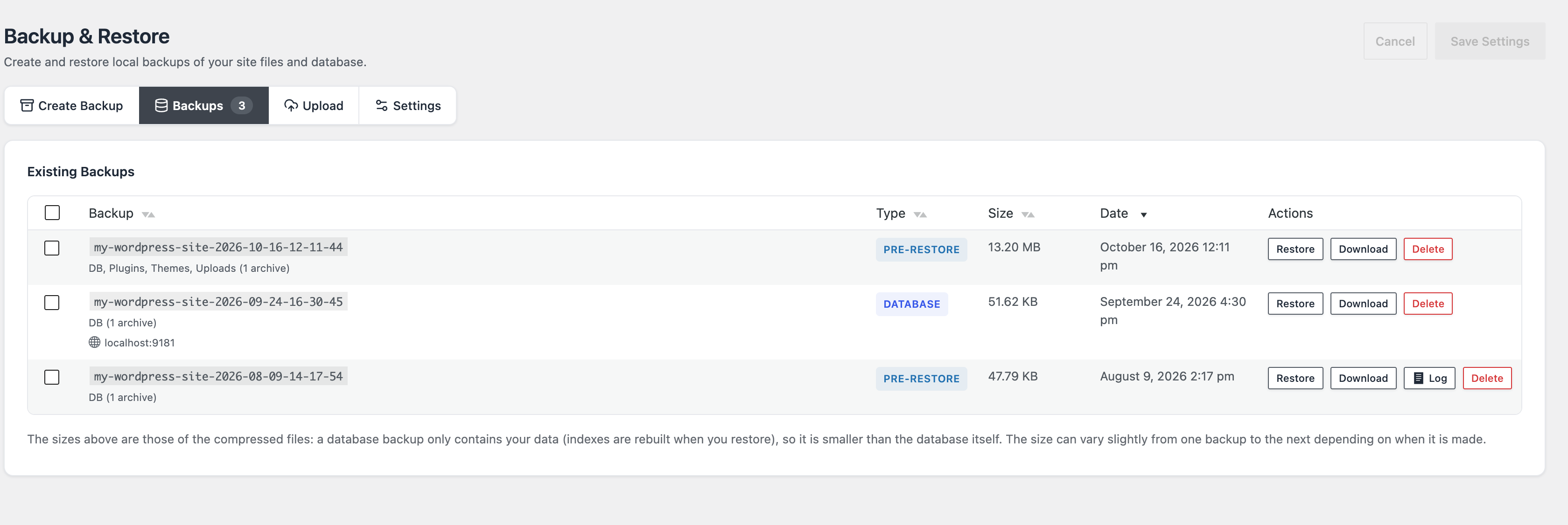
If you have older backups, find the last one made before the first sign of the hack. Restoring a copy taken after the infection brings the infection back. A restore with the default settings puts back the database, plugins, themes and uploads; it does not replace wp-config.php, .htaccess, wp-admin, wp-includes or the mu-plugins folder, so a backdoor (a hidden way back in that the attacker left behind) in those files stays until you clean them by hand. The backup tutorial explains how to schedule and store copies away from the server.
How do you lock the attacker out?
Reset every way in: the password of every user (administrators first), your SFTP and hosting panel accounts, the database user, and the secret keys in wp-config.php. The secret keys (small random strings WordPress uses to sign login cookies) are the part people forget: replacing them signs out everybody who is still logged in, an attacker included. WordPress.org provides a key generator whose output you paste over the old values. Two other ways in survive a password reset: application passwords (separate passwords for apps, listed on each user’s profile, which you can revoke) and administrator accounts you did not create, which you delete once you have noted them.
Blaminhor Essentials does not have a “reset all passwords” or “sign everyone out” button. Its Login Security module helps afterwards: a password policy can require a minimum length and a mix of characters, but it only applies when a password is next set, and existing passwords stay as they are.
How do you clean a hacked WordPress site?
Replace what you can with fresh files, look through the rest, or restore a clean backup. The official guide gives this order:
- Scan the site with the tools it lists: plugins such as Wordfence, Sucuri, GOTMLS and Quttera, and remote scanners such as VirusTotal and Sitecheck. Together they find more than any one alone.
- Scan your own computer. Attackers often start from a trojan on the owner’s machine that records passwords.
- Delete the
wp-adminandwp-includesfolders, then upload fresh copies of the same WordPress version through SFTP, so files the attacker added do not survive a merge. Do not use the reinstall button in the dashboard: it often only overwrites existing files, and hacks often add new ones. - Go through
wp-contentwith care, since it holds your themes and plugins, and look at.htaccess,index.php,header.php,footer.phpandfunctions.php. Beyond the official list, also checkwp-config.phpand themu-pluginsfolder.
A command-line tool helps with the first comparisons: wp core verify-checksums and wp plugin verify-checksums --all compare your files with the checksums (digital fingerprints) published by WordPress.org, and list the files that differ. They only cover core and plugins from the official directory, not your own theme or uploads.
What can Blaminhor Essentials do, and what can’t it?
It covers the steps around the cleanup, not the cleanup. There is no malware scanner, no firewall, no file comparison and no removal tool in the plugin.
| Step | Blaminhor Essentials | Not covered |
|---|---|---|
| Contain | Maintenance module: 503 page, access by role and IP | Stopping a backdoor already in your files |
| Keep a copy | Backup & Restore module: database, plugins, themes, uploads; restore with a safety copy; scheduled copies once you switch them on | Telling you which copy is clean: you choose the date |
| Lock down | Login Security: failed-attempt limit, journal, password policy, two-factor, new-sign-in alerts | Resetting every password or signing everyone out |
| Find the entry | Login Security’s journal lists sign-in attempts with the username tried, a hashed address and a partial address, kept 30 days by default, from the moment the module is on. Read it before you replace the secret keys: the hashed address changes with them, so later entries no longer match earlier ones for the same visitor | Anything that is not a login: file changes, plugin flaws |
| Clean | None | Malware detection and removal |
If malware scanning matters to you, a dedicated plugin such as Wordfence goes deeper; the plugin selection guide lists what each job needs.
How do you stop it from happening again?
Close the door that was used, and make the common ones harder. A common way in is not a clever trick but a known flaw in an out-of-date or abandoned plugin or theme, or a guessed password.
- Update everything, and delete plugins and themes you do not use. WordPress.org notes that older versions are more prone to hacks.
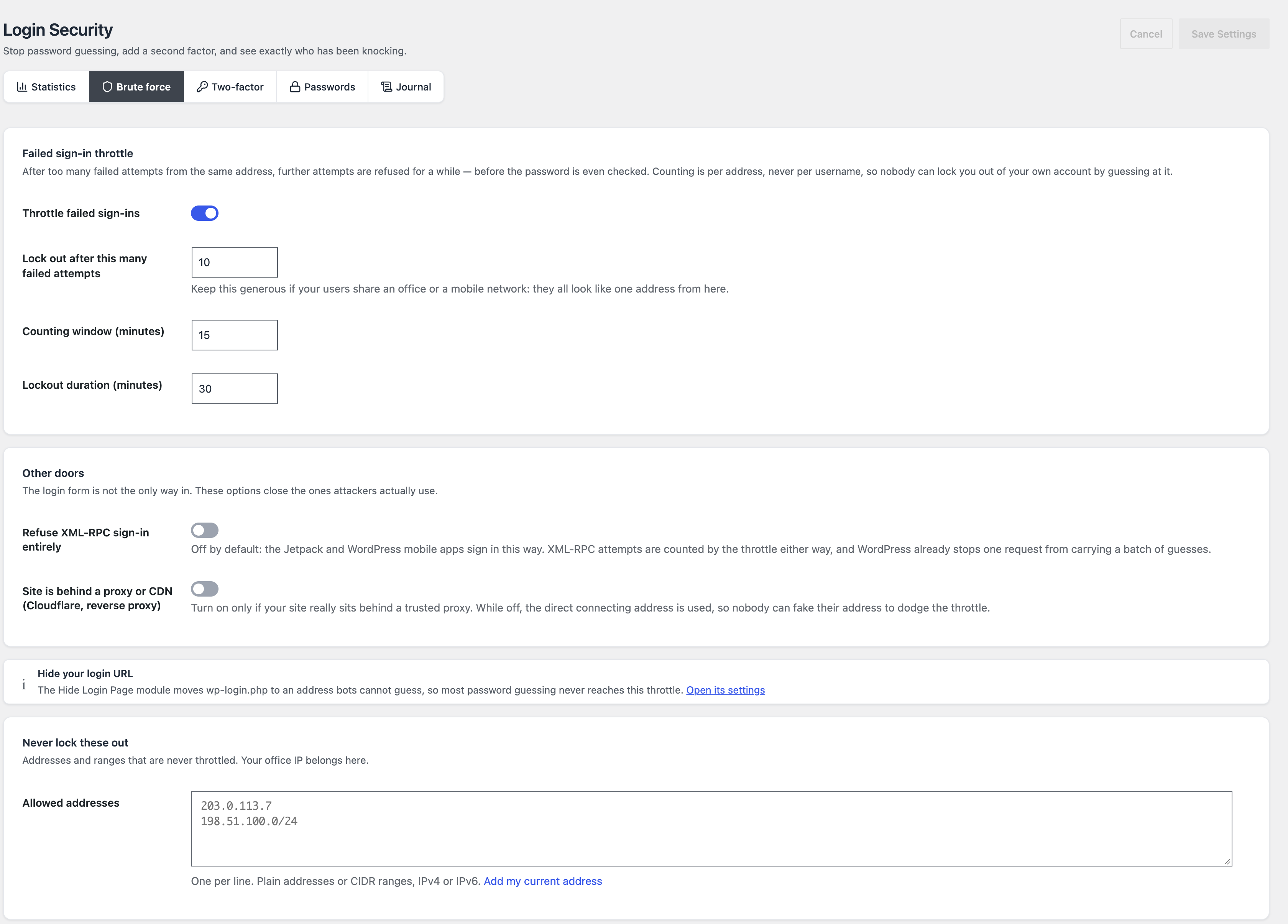
- Limit login attempts. Login Security’s throttle refuses further attempts from an address after too many failures, before the password is even checked; its defaults are 10 failed attempts within 15 minutes and a 30-minute lockout.
- Move the login page so bots do not find it: hiding the WordPress login page.
- Ask for a second proof at login. Two-factor is off by default in Essentials; you switch it on and each person sets it up from their own profile.
- Keep scheduled backups running, stored away from the server.
None of these stops an attacker who uses a flaw in a plugin you forgot to update; only the update closes that flaw.
When should you ask for professional help?
Ask when the site holds customer data or takes payments, when your host has suspended it, when it is infected again after cleaning, or when you cannot find where the infection is. A professional can do the forensics, the work of understanding how the attackers got in. The WordPress.org Hacked and Malware forums are the free route; they ask for a clear description of the symptoms.
Also contact your host: on shared hosting the attack may have reached more than your site, and a hacked site that sends spam can get the server’s address listed by email blacklists, which hurts delivery for the whole server. Once the site is clean, the email deliverability guide covers recovering your sending reputation.
– blaminhor
FAQ
Can a plugin remove malware from a hacked WordPress site for me?
A scanner plugin can find suspicious files, and some security services offer paid cleanup, but no plugin guarantees a clean result. WordPress.org's guide calls finding and removing the hack the most daunting step, and says the method depends on the symptoms. Blaminhor Essentials has no scanner and does not clean sites.
Can a WordPress site be hacked without showing anything?
Yes. WordPress.org's list of warning signs includes several that are invisible on the page: a host that disabled the site, a blacklist entry, new users you did not create, and a server used to attack other sites. Check the Security issues report in Search Console, the user list and any message from your host.
How long does Google's warning stay after a hack is fixed?
Until Google reviews your site. In the Security issues report of Google Search Console you fix the problem and request a review; Google says a review can take from a few days to a few weeks. Requesting a review before the cleanup is finished only delays things.
Do I need to tell my host?
Yes. On shared hosting (several sites on one server) the attack may have reached other sites, and the host can confirm whether the problem is a real intrusion or a service issue. Your host may also keep its own backups, and one that predates the infection gives you a clean copy to compare with.
What should I do if I find an administrator account I did not create?
Treat it as proof that someone had administrator access, so a way back in may remain. Note it in your records and keep the backup you made, then remove the account and continue with the lock-down and cleaning steps. Deleting the account alone does not end the problem.
Comments