
WordPress Sitemap Plugin: Set Up an XML Sitemap Free
WordPress already makes a basic sitemap. A sitemap plugin lets you choose what it lists and keep noindex pages out. How to set one up and submit it.

A sitemap is a file that lists the pages of your site so search engines find them without following every link. WordPress already makes a basic one; a plugin lets you decide what it lists.
The essentials
- Core already ships a sitemap at /wp-sitemap.xml, with 2,000 URLs per file by default.
- A plugin gives control: which post types and taxonomies (categories, tags) appear, pages you mark noindex left out, an optional image list, the number of URLs per file.
- Run one sitemap only. If your SEO plugin makes one, switch the others off.
- Google reads the page address and the last-modified date; it ignores the priority and change-frequency fields.
- Submit it once in Google Search Console, then leave it: the sitemap updates itself.
Does WordPress make a sitemap without a plugin?
Yes: since WordPress 5.5 (August 2020), core serves a sitemap index at /wp-sitemap.xml, split into files for posts, pages, categories, tags and authors, with at most 2,000 URLs per file by default (Make WordPress Core announcement). It is switched off when the site asks search engines not to index it (the “Discourage search engines” setting). It is a sensible default for a small blog.
Its limit is control. Core lists the public content types as they are, and a site owner who wants to leave out the author pages, a custom content type or pages kept out of search has to write code against the filters core offers (small hooks WordPress provides for developers). That gap is where sitemap plugins live.
When do you need a sitemap plugin?
You need one when the sitemap should reflect decisions you made, not WordPress defaults. Typical cases:
- Your site has a custom content type (events, products, portfolio items) and you decide whether it belongs in search results.
- Some pages are marked noindex, and listing a page you also tell Google to skip sends two opposite signals.
- You want images listed, so Google can discover them.
- You want one sitemap address to give to Search Console.
If none of this applies, core is enough. A plugin changes what the list contains, and nothing about how the site ranks.
What does the Blaminhor Essentials sitemap do?
It serves an index at /sitemap.xml and one file per content type, such as post-sitemap.xml, page-sitemap.xml or category-sitemap.xml, all generated from your settings. The behaviour below is read from the module’s code (Blaminhor Essentials 2.8.6).
| What | How it behaves |
|---|---|
| Content types | You tick post types and taxonomies (categories, tags, your own) in the Sitemap tab |
| Pages left out | Unpublished posts, password-protected posts, posts you tick “Do not index this page” on, and terms with no posts. The Indexing tab keeps its own lists (see below) |
| Last-modified date | On by default, taken from the post’s last modification |
| Images | Off by default; when on, up to 10 images per page in total: the featured image and images from the content, the latter only from your own site |
| URLs per file | 1,000 by default, adjustable from 100 to 50,000; bigger types split into numbered files (post-sitemap2.xml) |
| Refresh | Built on request, kept for one hour, rebuilt whenever you save or delete a post or edit a term; some bulk changes can take up to an hour to show |
| robots.txt | A “Sitemap:” line pointing to /sitemap.xml, while the site is visible to search engines and WordPress serves its own robots.txt (no physical file on the server) |
| WordPress core sitemap | Switched off, and its old /wp-sitemap.xml addresses redirect (301) to /sitemap.xml |
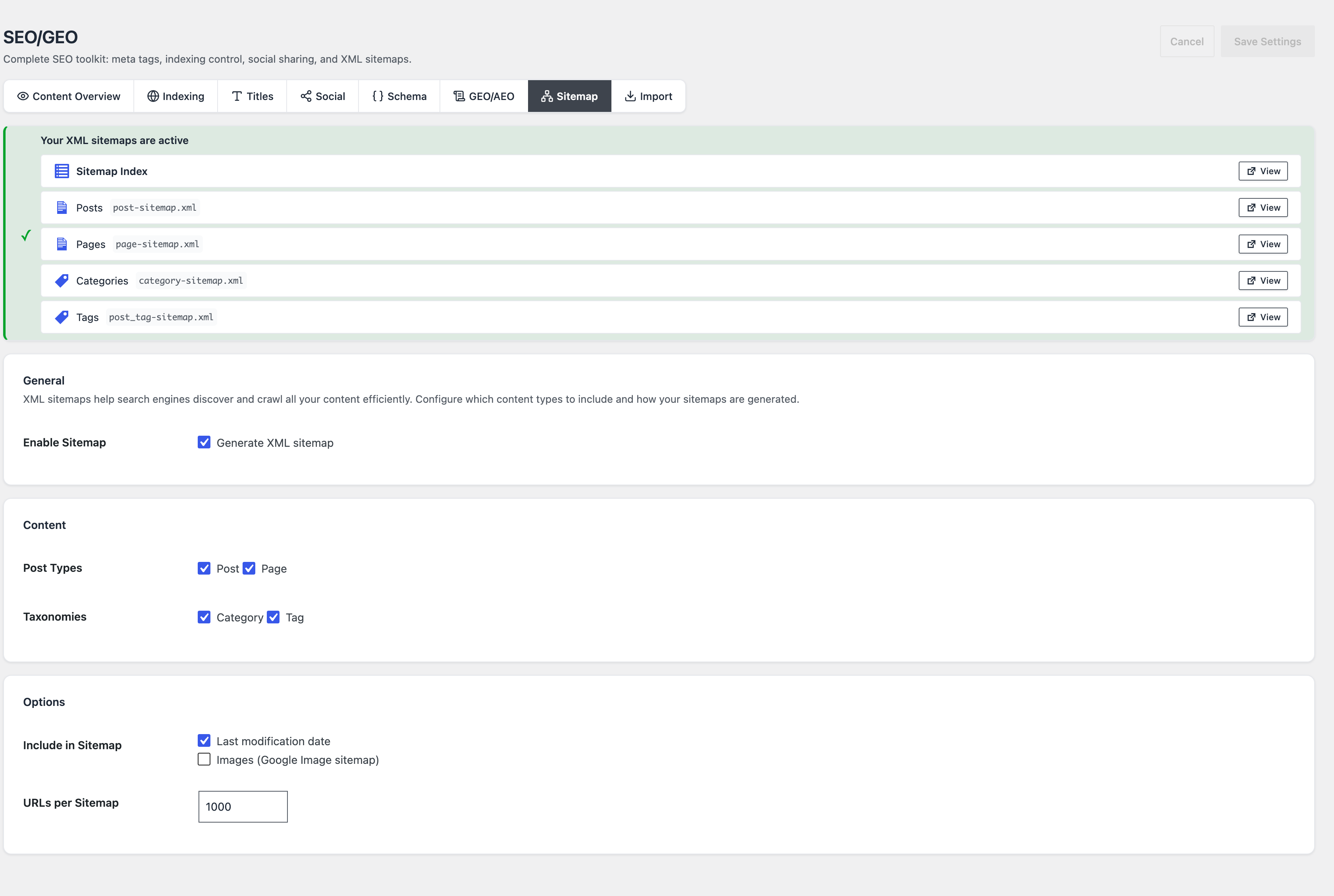
On a fresh site the tab lists posts, pages, categories and tags. A public content type added later, such as a calendar’s events, is included until you untick it.
How do you set up a sitemap in WordPress?
Switch the sitemap on, tick the content types, save, then open /sitemap.xml to check it. With Blaminhor Essentials:
- Install and activate the plugin, then switch on the SEO/GEO module (a module is one feature you turn on separately).
- Open the Sitemap tab. “Generate XML sitemap” is on by default.
- Tick the post types and taxonomies that should appear. Leave out the types you would not want a visitor to land on, and untick the same ones in the Indexing tab: the two tabs keep separate lists, and a type that is noindex there but ticked here is listed in the sitemap anyway.
- Keep “Last modification date” on. Leave images off unless images matter to your traffic.
- Save, then open
yoursite.com/sitemap.xml. You should see an index of files; open one to see its addresses.
A single page you want hidden is handled on the page itself: tick “Do not index this page (noindex)” in its SEO box, and it leaves the sitemap as soon as you update the page (set from the Content Overview screen instead, it can take up to an hour, as the file is cached for an hour).
How do you submit a sitemap to Google?
Open Google Search Console, go to the Sitemaps report, enter the sitemap address and submit it. Search Console is Google’s free dashboard for site owners. Google’s documentation lists three ways to tell it about a sitemap: the Search Console report, its API, or a line in robots.txt. Blaminhor Essentials already adds that line when it can (see the table above).
The report then shows when Google last read the file and any error it met. Submit once; the file is read again on its own. Bing Webmaster Tools has an equivalent report if you want Bing traffic too.
Google announced in June 2023 that it would stop accepting “pings” (a message that says “my sitemap changed”), so Blaminhor Essentials no longer sends them.
Does a sitemap help your pages rank?
It helps Google find pages and read when they changed; it does not raise rankings and does not force indexing. Google treats a sitemap as a hint. Two details of the fields matter, both stated in Google’s sitemap documentation:
- Google ignores
<priority>and<changefreq>. Blaminhor Essentials still writes a priority value in its files (1.0 for a static front page, 0.8 for other pages, 0.6 for posts and custom types, 0.4 for categories and tags); it is harmless, and it carries no weight with Google. - Google uses
<lastmod>only when the dates are consistently accurate. The date follows each save, so a bulk edit of many posts can move all their dates at once. If you run one, expect the dates to say “changed” for pages whose text did not.
What can the Blaminhor Essentials sitemap not do?
It covers posts, pages, custom content types and their categories or tags, optionally with images, and nothing else: no news sitemap, no video sitemap, no author sitemap, and no HTML sitemap page for visitors. A home page that shows your latest posts, rather than a static page, is not listed in any file. If your site is a news publisher or video-led, a dedicated plugin goes deeper. The plugin has 80+ active installs against millions for the large SEO plugins (WordPress.org, November 10, 2026), so there are fewer public reviews to lean on.
Which sitemap plugin should you pick?
Use the sitemap your SEO plugin already makes. One plugin, one sitemap.
| Plugin | Active installs (Nov 10, 2026) | Sitemap |
|---|---|---|
| Yoast SEO | 10+ million | XML sitemaps listed among its features |
| Rank Math SEO | 4+ million | XML sitemap with custom post type support |
| All in One SEO | 2+ million | Sitemap in its plugin description |
| XML Sitemap Generator for Google | 1+ million | Dedicated sitemap plugin: XML, HTML, image, news, video and RSS sitemaps |
| Blaminhor Essentials | 80+ | SEO/GEO module with sitemap, free |
Pick a dedicated sitemap plugin only when you need news, video or an HTML sitemap. For anything else, the sitemap of the SEO plugin you already use does the job. If you are choosing the whole stack, best WordPress plugins covers the six jobs a site needs plugins for.
What else sits next to the sitemap in the SEO/GEO module?
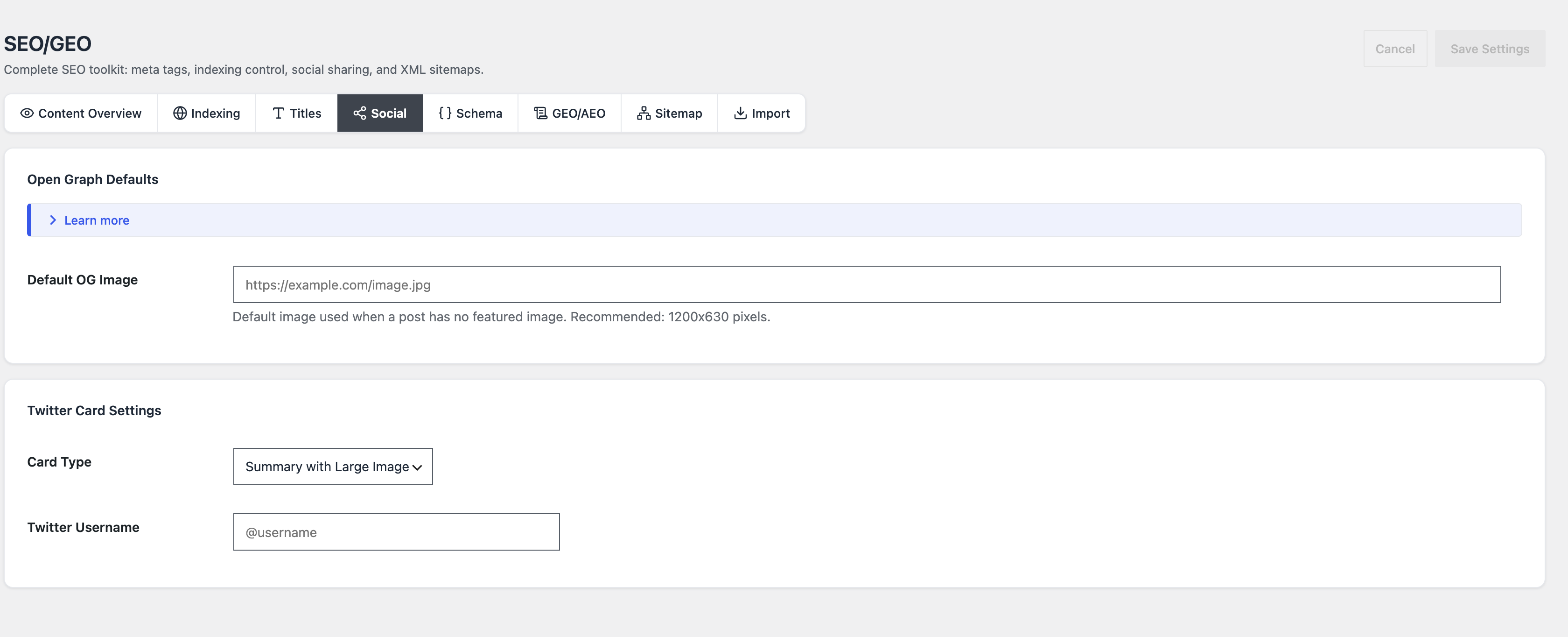
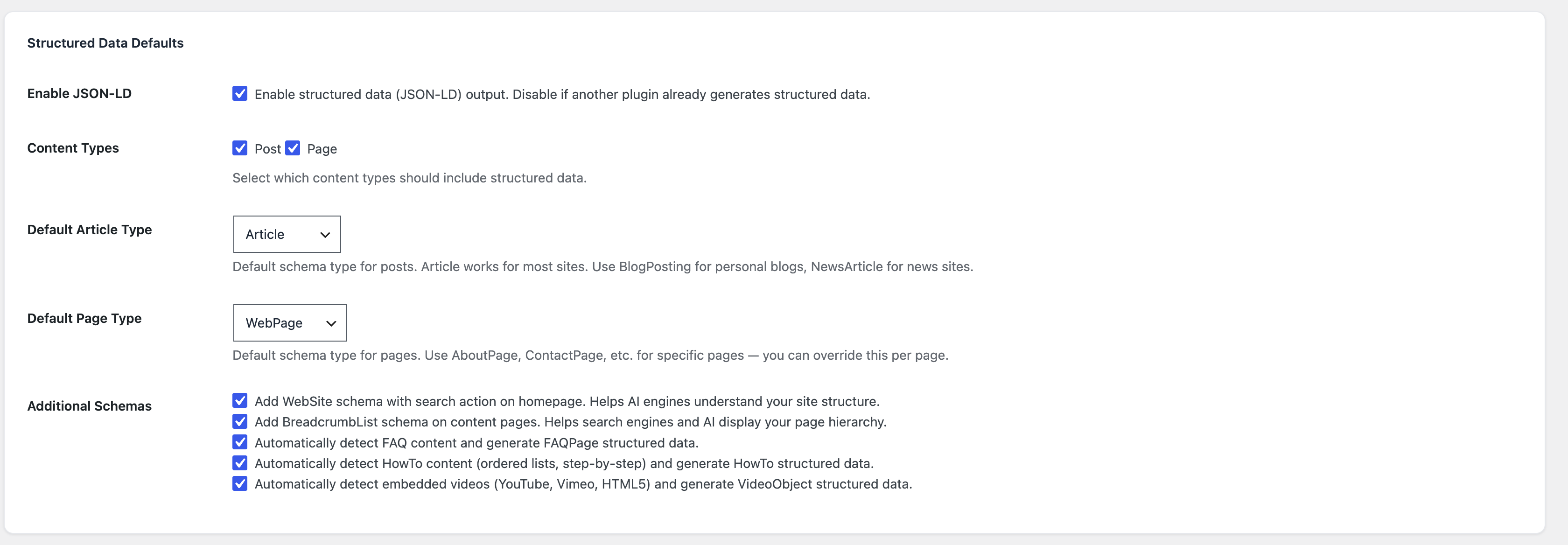
Two settings are worth a look once the sitemap works: the social preview image and the breadcrumb data. Open Graph (the preview card shown when a link is shared) has a default image for pages without a featured image, with 1200×630 pixels recommended. Breadcrumb structured data (a code block that tells search engines where a page sits in your site) is one of the options in the Schema tab. The sitemap and these settings live in the same SEO/GEO module, so you do not install a plugin for each.
The full picture of the module, including llms.txt and the SEO and GEO guide, is covered in those articles. To keep a site out of search while you build it, see hiding a WordPress site from Google. Note that Blaminhor Essentials keeps serving /sitemap.xml on such a site and only drops its line from robots.txt, so switch the sitemap off too if you want none.
What should you do once the sitemap is live?
Check that /sitemap.xml opens and that Search Console reads it, then work on the pages themselves. The useful work is then on the pages: dead links that waste visitors’ time, and a noindex on pages that should not be found. Blaminhor Essentials is free and open source (its code is public).
– blaminhor
FAQ
Does WordPress have a sitemap without a plugin?
Yes. Since WordPress 5.5, core serves a sitemap index at /wp-sitemap.xml. It lists the public content types of the site and is switched off when the site asks search engines not to index it. A plugin is needed only when you want to choose what is listed or exclude pages.
Where is my WordPress sitemap?
With Blaminhor Essentials it is at yoursite.com/sitemap.xml, an index that links one file per content type, such as post-sitemap.xml. With WordPress core alone it is at /wp-sitemap.xml. Open the address in a browser: you should see XML, not a 404 page.
How do I submit a sitemap to Google?
Open the Sitemaps report in Google Search Console, enter the sitemap address and submit it. Google also finds a sitemap named in the robots.txt file, which Blaminhor Essentials adds for you when the site is visible to search engines and has no physical robots.txt file. Submitting is optional but shows you reading errors.
Why are my pages submitted but not indexed?
A sitemap is a list of suggestions, not an order. Google decides what to index from quality, duplicates and crawl budget (the number of pages it chooses to fetch from your site). Check the page in Search Console's URL Inspection tool, which states why it was left out.
Do I need a separate plugin if Yoast or Rank Math is installed?
No. Yoast SEO, Rank Math, All in One SEO and Blaminhor Essentials each build a sitemap. Run only one at a time: two sitemaps list the same pages at different addresses and can disagree. Keep the one from your SEO plugin and switch the others off.
Comments