
WordPress Coming Soon Page: Set One Up Without Hurting SEO
A coming soon page should answer 503 with a noindex tag, say what is coming and when, and take one email field. Plus the launch-day checklist.

You are building a new site and you do not want visitors, or Google, to see half-finished pages. So you want a “coming soon” page. The page is the easy part: what costs people traffic is the status code it sends, what it says, and what they forget on the day they take it down. This guide covers the three, launch-day sequence included.
The essentials
- Coming Soon mode in Blaminhor Essentials answers 503 with a Retry-After header (the number of seconds crawlers should wait) and a noindex, nofollow tag; the site’s data interface at /wp-json answers 503 too.
- Google ignores content served with a 5xx status and slows its crawling, according to its documentation. For a site never indexed, that is the behaviour you want.
- The page needs four things: what the site is, when it opens, one email field, and a line about who you are, with a privacy policy link.
- Launch day is six steps in a fixed order: export the emails, switch the mode off, purge caches, check the two indexing switches, test the home page logged out, submit the sitemap.
- The email list lives in WordPress: up to 5,000 addresses, exported as a CSV file. No confirmation email is sent.
What should a WordPress coming soon page say?
One sentence on what the site is, a date if you have one, a single email field, and a line saying who is behind it, with a link to your privacy policy. Anything more belongs on the finished site: a visitor on a holding page wants to know what is coming, when, and how to hear about it.
The headline should name the thing: “Marine’s pottery studio opens online in January” tells more than “Something New is Coming”, the default text the module uses when the field is empty. The message has room for two or three sentences: what people will find, and why they should leave their address. It accepts basic HTML, so this is also where the link to your privacy policy goes: the page has no footer field, and people giving you an email should be able to read what you will do with it.
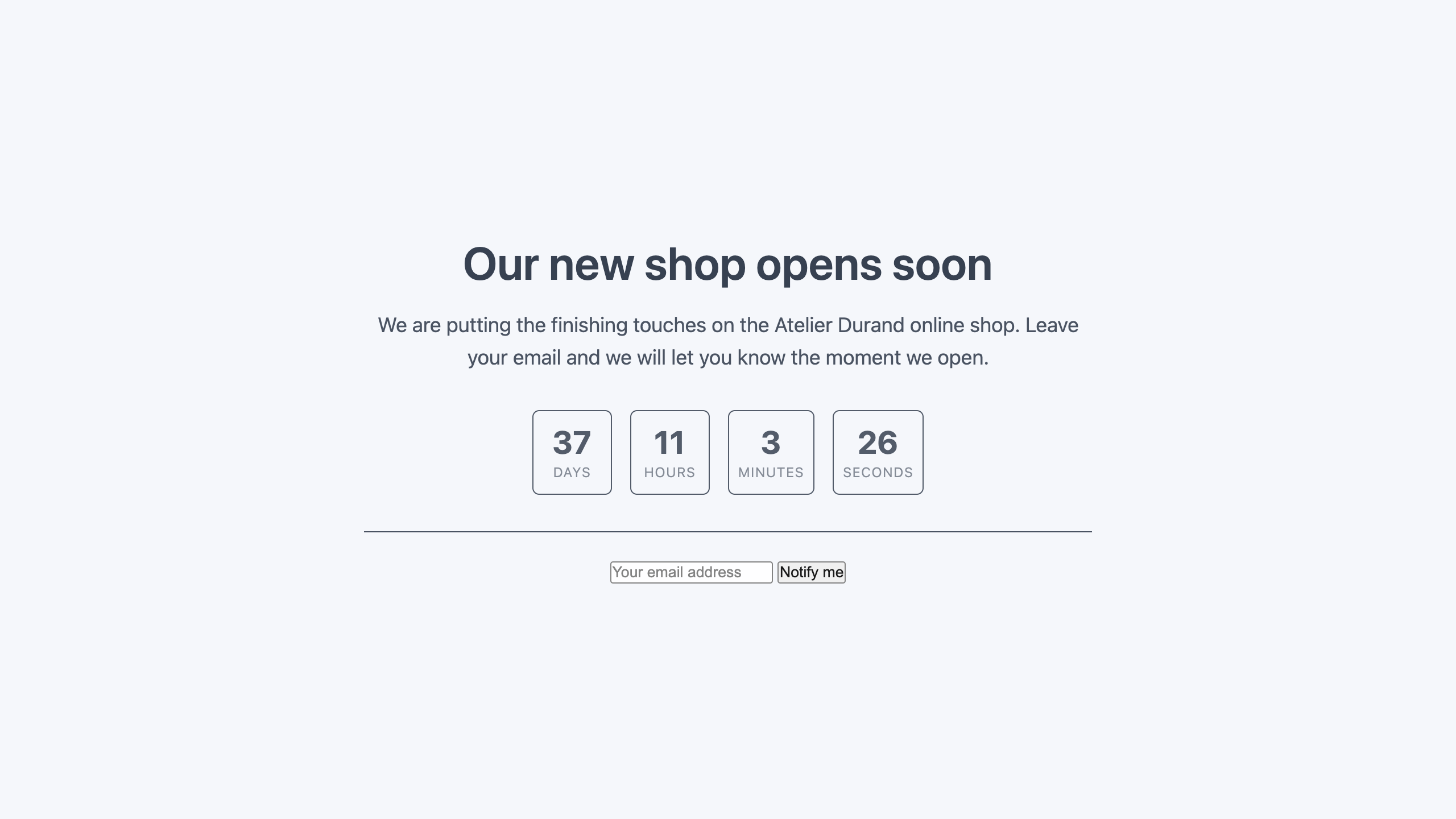
A date is useful only when you will keep it. The module shows a live countdown when you fill in the “Countdown target” field, in your site’s time zone, and hides it once the date has passed.
One email field, not two. The module can show its own sign-up form, or render a shortcode (a short code in square brackets that a plugin replaces with its own form) from a newsletter plugin. Pick one. The built-in form is a single address field, a button labelled “Notify me” by default, and a thank-you line you can rewrite.
Why should a coming soon page answer 503 and not 200?
Because the status code is what Google reads first, and 200 means “this is a real page, consider indexing it”. A 503 means “temporarily unavailable, come back later”, which is the truth about a site that has not launched. The page’s words and noindex tag come second: the status code decides whether Google reads them at all.
The web standard that defines the codes (RFC 9110) describes 503 as a server “currently unable to handle the request due to a temporary overload or scheduled maintenance”, and allows a Retry-After header to say how long to wait. Google’s documentation on HTTP status codes says that “any content Google receives from URLs that return a 5xx status code is ignored” and that its crawlers “temporarily slow down with crawling”. For a site with nothing in the index yet: Google notes the domain exists, keeps nothing, and returns at a slower pace.
One side effect to know about: while the mode is on, the module answers before WordPress on every public address, /robots.txt included, so that file returns the 503 page too. Google reads a 503 on robots.txt as “crawl nothing for now”, and its guide on pausing a site advises against it. On a site never indexed this changes little; it is one more reason to keep the 503 period short.
A holding page that answers 200 does the opposite. The same document says content received with a 2xx status “may be considered for indexing”, so the first thing Google could record about your domain is a page with ten words and a form. A noindex tag is a second line of defence, and the module adds it in every mode, but the status code is the first.
What if the page stays up for weeks? A 503 is meant for a short period. Google’s guide on pausing a website puts it this way: “use a 503 HTTP response for short periods or a 200 status for a longer time, while allowing crawling through robots.txt”, that is, a real page Google may index. For a site never indexed, nothing is lost: there is nothing to drop. But the longer the 503 lasts, the longer Google waits before crawling again, so your real pages take longer to appear after launch. The caution is stronger for a site that already ranks: Google says indexed URLs “are preserved in the index, but eventually dropped” when they keep returning a server error. For a relaunch, use Maintenance mode for hours, not weeks; putting WordPress in maintenance mode covers that case.
How does Coming Soon mode work in Blaminhor Essentials?
It is one of four modes of the Maintenance module: Coming Soon and Maintenance answer 503, Staging and Development answer 200 and are meant for previews. The mechanics are detailed in the maintenance mode guide. The summary below is read from the module’s code (Blaminhor Essentials 2.8.6).
| What | How Coming Soon mode behaves |
|---|---|
| HTTP status | 503 on every public page, and on /wp-json |
| Retry-After | Seconds until the countdown date when it is in the future; one hour otherwise |
| Robots tag | noindex, nofollow in the page’s head |
| Who sees the real site | Administrators always; roles you tick in the Access tab; IP addresses you list, one per line |
| Login link | Shown by default; never shown when the Hide Login module is active, so the secret address stays secret |
| Email form | Off by default. Hidden trap field for bots, five sign-ups per hour per visitor then an hour’s block, 5,000 addresses at most |
| Export | CSV file, columns email and subscribed_at, administrators only |
| Sitemap | /sitemap.xml (or /wp-sitemap.xml, WordPress’s own, when the SEO/GEO module’s sitemap is off) also answers the 503 page while the mode is on |
| Reminder | A “Coming Soon Mode Active” badge in the admin bar and a warning in the plugin’s dashboard widget |
Two details matter for launch day: the plugin’s own page cache never stores the 503 page (it keeps only pages that answered 200), and switching the mode on or off purges that cache and sets or removes a flag file that keeps the cache aside while the mode is on.
How do you set up the coming soon page?
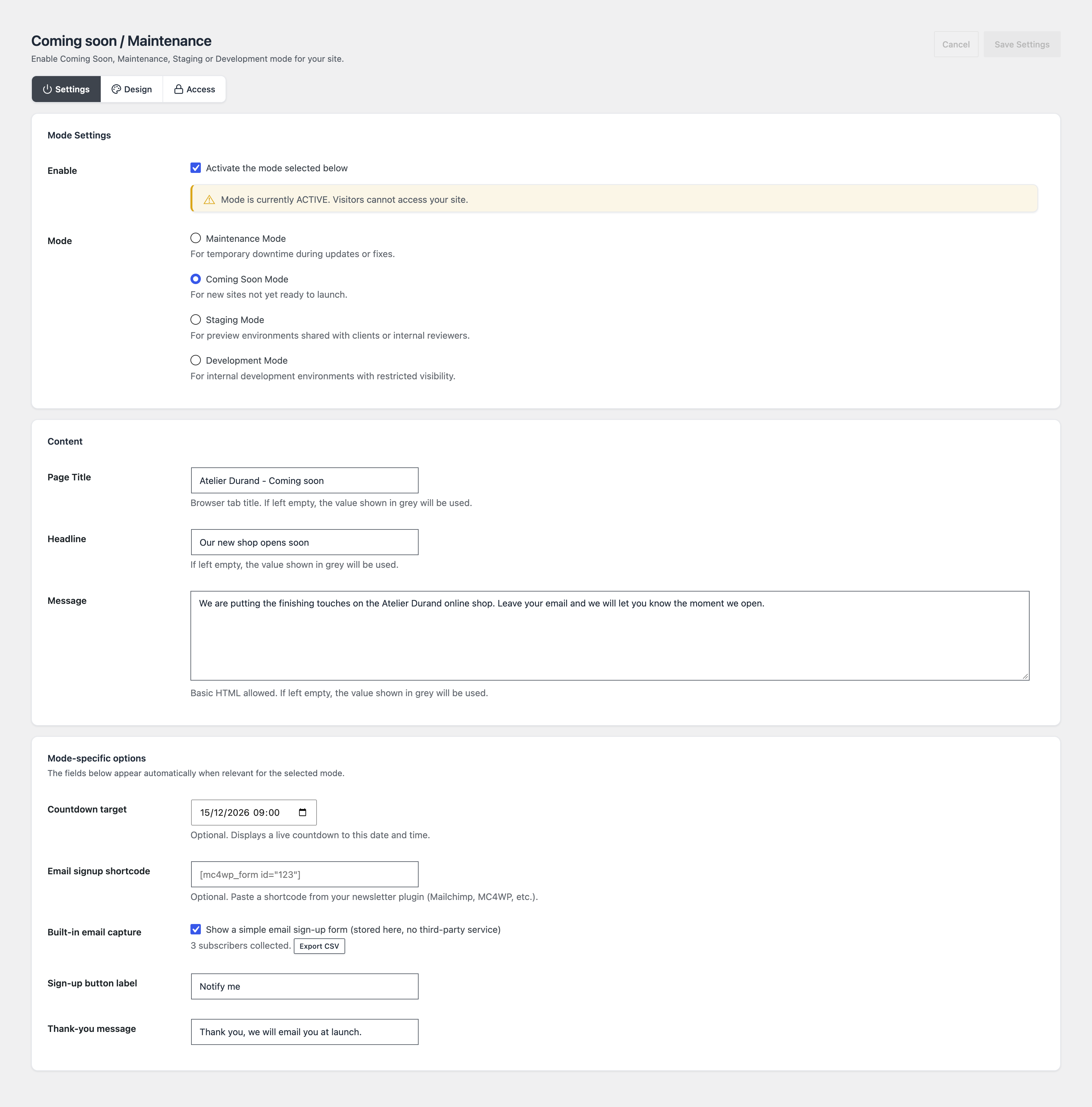
Switch the Maintenance module on, pick Coming Soon, fill in the headline, message and date, tick the email form, then tick Enable and test in a private window. Nine steps, all in the plugin’s own screens, and none of them touches your theme or your pages: the holding page is drawn by the module, not by WordPress. In order:
- In Blaminhor Essentials, switch on the Maintenance module (a module is one feature you turn on separately). Its page is called Coming soon / Maintenance.
- In the Settings tab, choose Coming Soon Mode.
- Fill in Page Title (the browser tab), Headline and Message, privacy link included.
- Set the Countdown target if the date is fixed. The time is read in your site’s time zone.
- Tick Built-in email capture, or paste your newsletter plugin’s shortcode in Email signup shortcode. Not both.
- In the Design tab, pick a logo and the two colours.
- In the Access tab, tick the roles that should see the real site. Your current IP address is shown under the IP list if you want to add it.
- Back in Settings, tick Enable and save.
- Open your home page in a private browsing window: you should see the holding page. In your usual window, where you are logged in, the admin bar shows a “Coming Soon Mode Active” badge (administrators only).
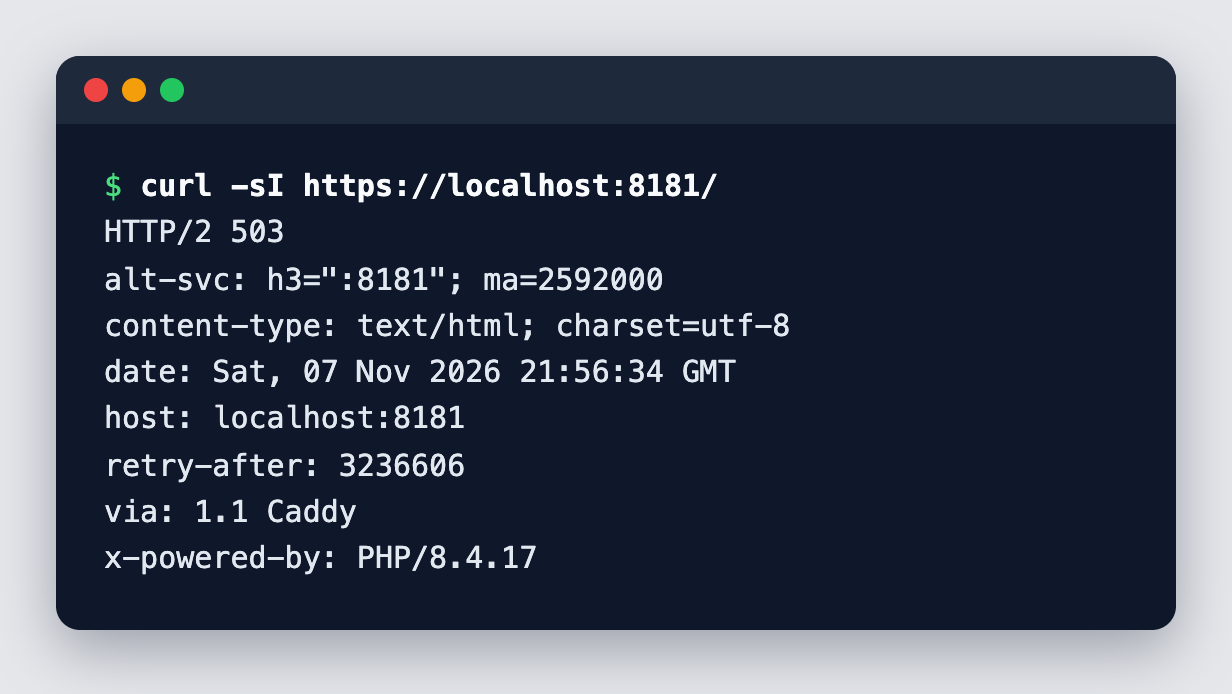
To confirm the status code, open the browser’s developer tools (F12 in most browsers), the Network tab, reload, and click the first line: the status column should read 503 and the response headers should include Retry-After. From a terminal, curl -sI https://yoursite.com/ prints the same two facts, as below.
What do you check on launch day?
Export the emails, switch the mode off, purge any cache the plugin does not control, check the two indexing switches, test the home page logged out, submit the sitemap. Six steps, and the order matters: purge the outside caches only once the holding page is gone, or they may store it again. In this order:
- Export the subscribers first. In the Settings tab, under Built-in email capture, a line reads “N subscribers collected” with an Export CSV button, shown to administrators once at least one address exists. Download it now so it does not slip.
- Untick Enable and save. The plugin purges its own page cache and removes the flag file. Nothing else is needed on the plugin’s side.
- Purge every other cache. The plugin only talks to its own Cache module. A host-level cache, a CDN (a network of servers that keeps copies of your pages close to visitors) such as Cloudflare, or another cache plugin may still hold the holding page: purge it from its own dashboard.
- Check the two indexing switches. In Settings, Reading, “Discourage search engines from indexing this site” must be unticked; it is often left on from the build. In the SEO/GEO module, Indexing tab, “Do not index this site on search engines for now” must be unticked too. If the SEO/GEO module is on, the plugin shows a warning notice in the admin area and a “Search engines are discouraged” entry in its dashboard widget while either switch is on.
- Open the home page in a private window. You should see the real site. Reload with the Network tab open: status 200, and the page source should no longer contain a robots tag saying noindex.
- Submit the sitemap. Open yoursite.com/sitemap.xml (yoursite.com/wp-sitemap.xml, WordPress’s own, if the SEO/GEO module’s sitemap is off): while the mode was on, that address answered the 503 page too. Submit it in Google Search Console’s Sitemaps report. The plugin also adds a “Sitemap:” line to robots.txt, but only when the SEO/GEO module’s sitemap is switched on, the site is visible to search engines, its own “do not index” switch is off and no physical robots.txt file exists, so open yoursite.com/robots.txt and check. Setting up the sitemap explains the report.

One timing detail: the sitemap file is kept for one hour once built. If it still shows an old list after step 4, saving any post rebuilds it.
Which mistakes leave a site hidden after launch?
Four, and all of them are silent: the site looks fine to you because you are logged in. Each one leaves visitors or Google in front of a page you no longer see, so the test that catches them is the same every time: open the home page in a private window and read the status code.
- The mode is still on. You launched, told everyone, and visitors still see the countdown. The module fights this with the admin bar badge, the dashboard widget warning and a “Mode is currently ACTIVE. Visitors cannot access your site.” notice on its settings page. Look at the admin bar before you announce anything.
- Staging or Development mode in production. Both answer 200 with a noindex tag and leave /wp-json open, because they are built for a client preview. Left on in production, nothing is indexed and your content is readable through /wp-json. Check the mode radio button while you build.
- A cache still serving the holding page. The plugin’s cache cannot do this: the 503 page is never stored, and Staging and Development pages are marked do-not-cache. External caches can. If visitors see the holding page and you do not, purge the external cache and test again in a private window.
- “Discourage search engines” left on. That box is often ticked during the build and survives the launch. WordPress then adds noindex to every page and the plugin drops its sitemap line from robots.txt. Hiding a WordPress site from Google while you build it covers how to undo it.
If you built on a temporary address and moved to the final domain for launch, changing a WordPress domain lists what else has to follow the address.
Which coming soon plugin should you pick?
If you already use Blaminhor Essentials for its other modules, its Coming Soon mode does the job described above. If you want a drag-and-drop landing page with templates, the dedicated plugins below go further. Active installations are from WordPress.org on November 7, 2026.
| Plugin | Active installs | What its WordPress.org page says it is |
|---|---|---|
| Maintenance (WebFactory) | 1+ million | Maintenance page |
| Website Builder by SeedProd | 600,000+ | Theme builder, landing page builder, coming soon page, maintenance mode |
| LightStart | 400,000+ | Maintenance mode, coming soon and landing page builder |
| CMP – Coming Soon & Maintenance (NiteoThemes) | 200,000+ | Coming soon and maintenance plugin |
| Blaminhor Essentials | 80+ | Maintenance module, one of its modules, free |
The status code each of these plugins sends was not measured for this guide. Whichever you choose, run the Network-tab check from the setup section once: it shows what Google is being told, and the case to avoid, a 200 without a noindex tag.
What Blaminhor Essentials does not offer: page templates, a drag-and-drop editor, more than one form field, a confirmation email, or a connection to a newsletter service other than through a shortcode. The list is capped at 5,000 addresses, after which visitors are told sign-ups are closed. An address that fails the format check is not stored, but the visitor still sees the thank-you message.
What comes after the launch?
Write to the list you exported, then look at what the site sends. Password resets and form notifications deserve a working SMTP setup now that real visitors trigger them, and if the site uses analytics or forms, a cookie consent banner belongs on the live site.
Coming Soon mode is one module among the twenty-plus in Blaminhor Essentials, free and open source.
– blaminhor
FAQ
Does a coming soon page hurt SEO?
Not when the server answers 503 and the page carries a noindex tag. Google's documentation says content returned with a 5xx status is ignored and crawling slows down, so nothing is indexed and nothing is held against the domain. A coming soon page that answers 200 is the risky one: Google may index the placeholder as your home page.
Can I collect email addresses on a coming soon page without a newsletter plugin?
Yes. Coming Soon mode in Blaminhor Essentials has a built-in email form, off by default. Addresses are stored in your WordPress database, de-duplicated, capped at 5,000, and exported as a CSV file with two columns, email and subscribed_at. No confirmation email is sent, so the list is a plain list of addresses, not a verified mailing list.
How do I see my own site while the coming soon page is on?
Log in. Administrators always see the real site, and the Access tab lets you add other roles, such as Editor. You can also list IP addresses that see the site without logging in, one per line; the tab shows your current address. Behind a proxy such as Cloudflare, the server sees the proxy's address, not yours.
Why does Google still not show my site after launch?
Check three switches. In Settings, Reading, 'Discourage search engines from indexing this site' must be unticked. In the SEO/GEO module's Indexing tab, 'Do not index this site on search engines for now' must be unticked too. And the Maintenance module's Enable box must be off. If the SEO/GEO module is on, the plugin shows a notice in the admin area while either indexing switch is on; the Maintenance module shows its own badge in the admin bar.
What is the difference between coming soon and maintenance mode?
Both hide the site and answer 503. Coming Soon is for a site that has never launched: its page can show a countdown and an email form. Maintenance is for a live site taken down briefly: its page can show an estimated return time and a contact form. In Blaminhor Essentials they are two modes of the same module.
Comments